Introduction
Thank you for purchasing Ludo Royale. This guide takes you from opening the project to publishing your own version of the game. Every gameplay, economy, ads and shop setting lives in one asset (the Game Config), every screen and popup is a regular prefab in one scene, and the rules of the game are plain C# you can read and change.
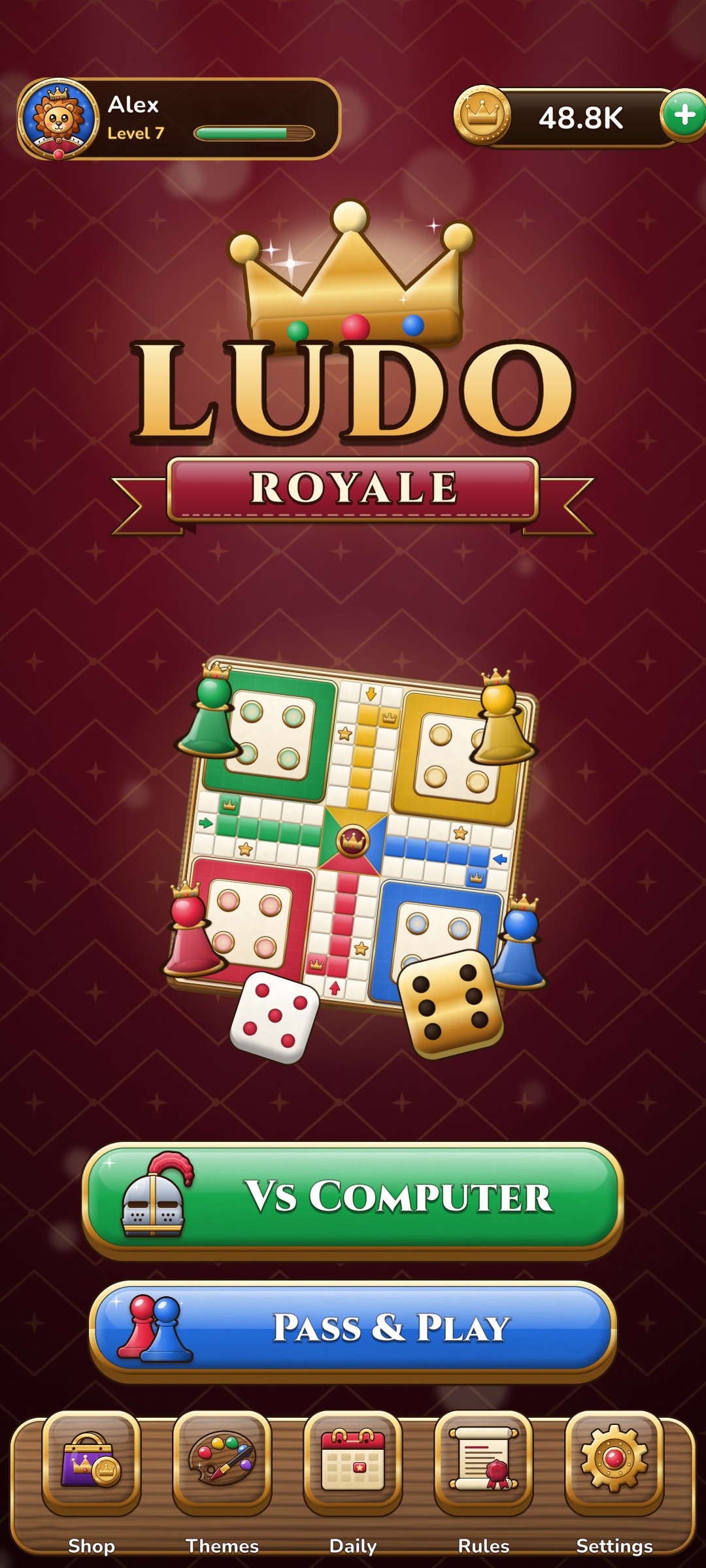
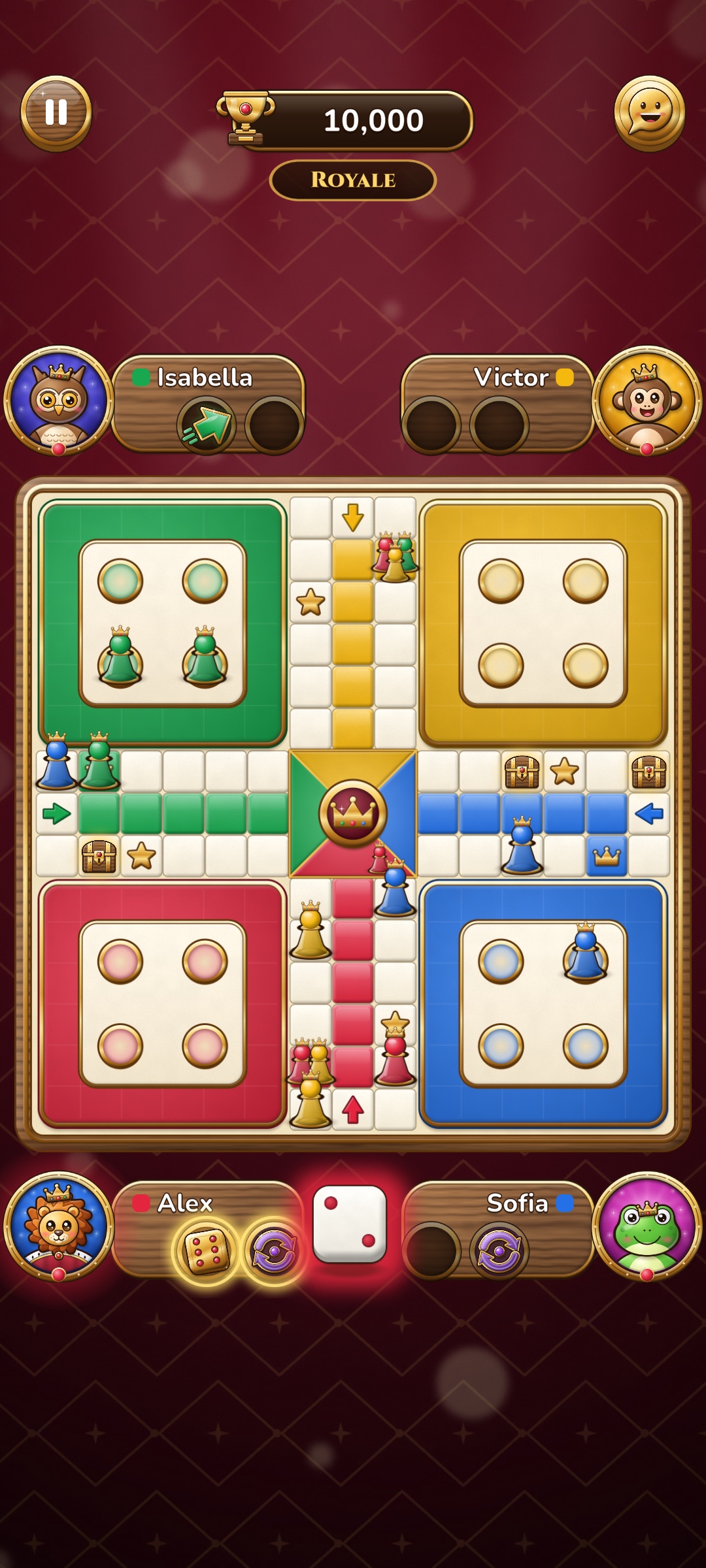
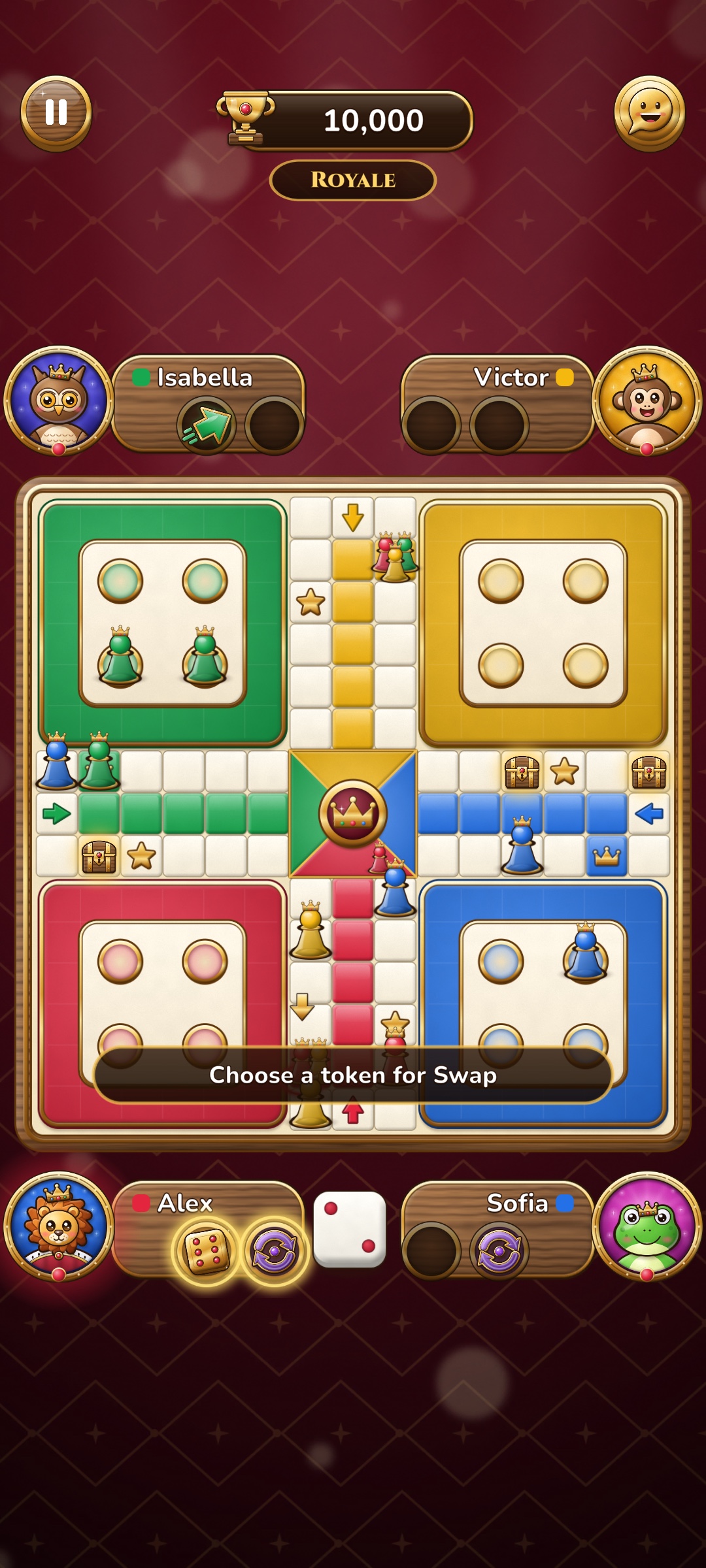
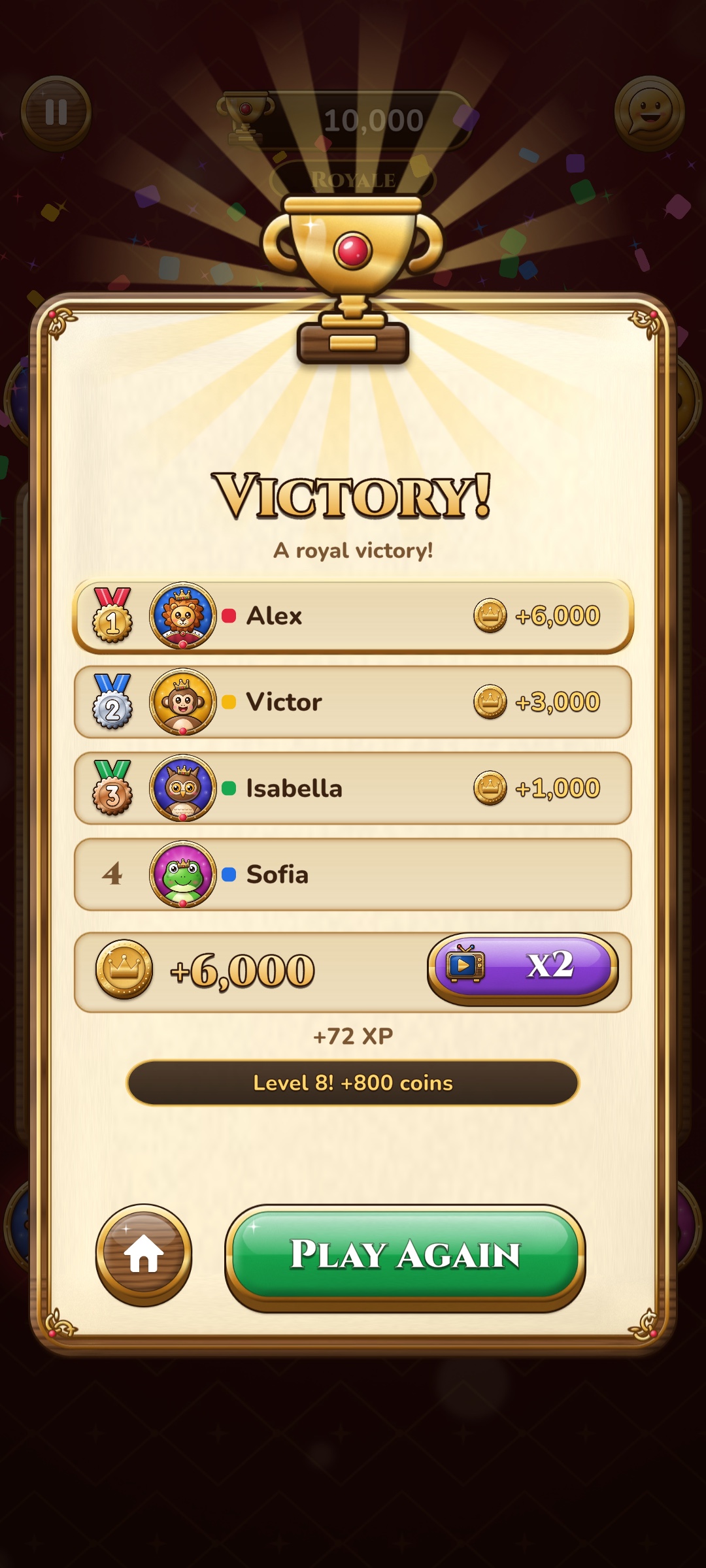
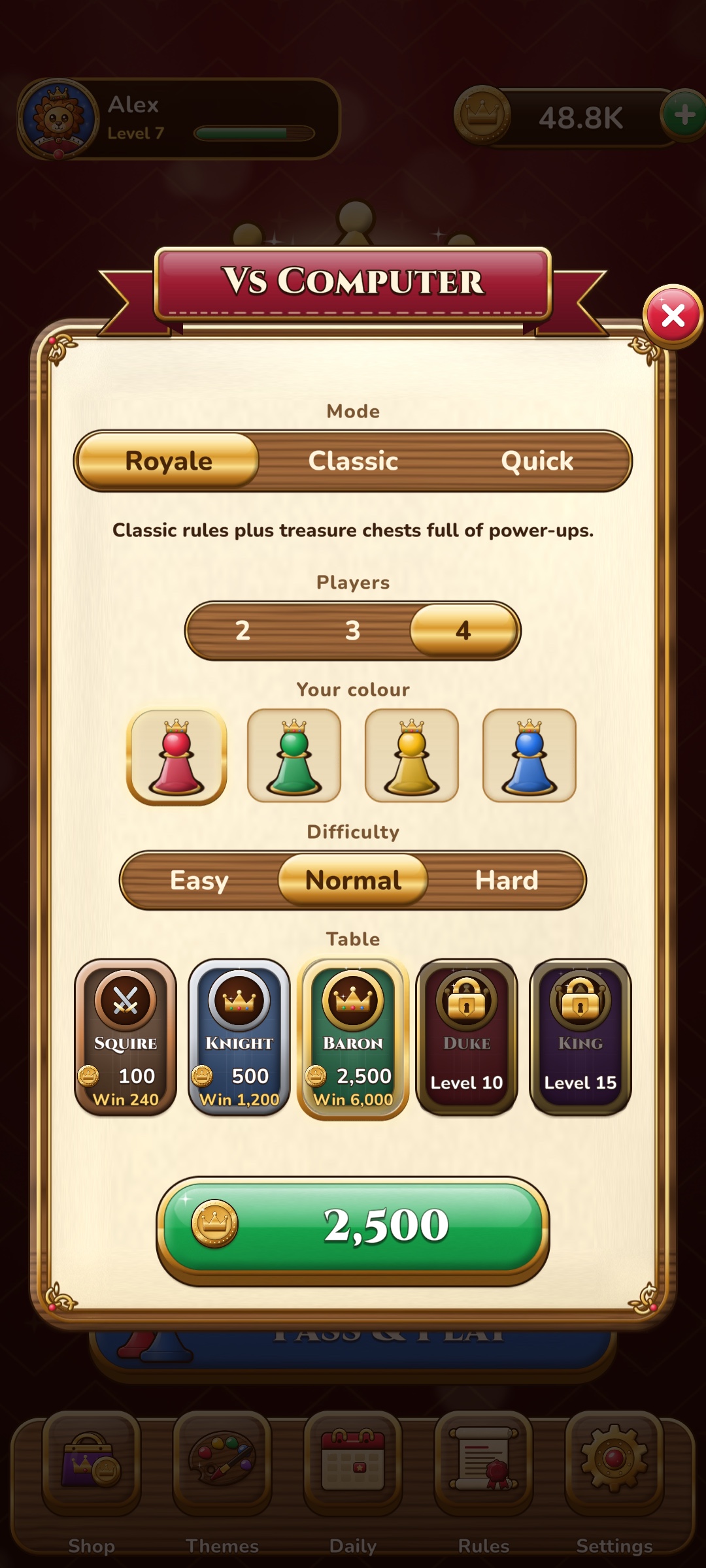
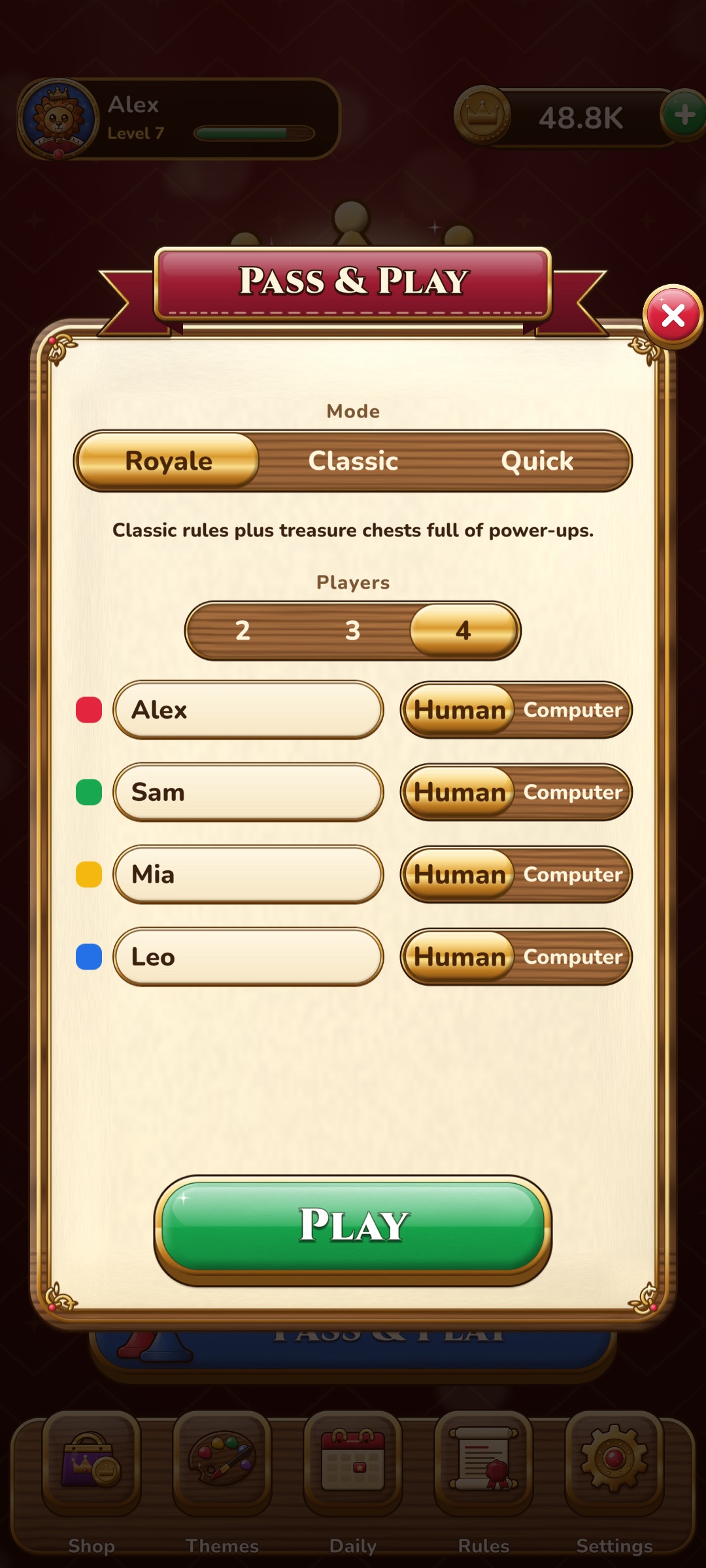
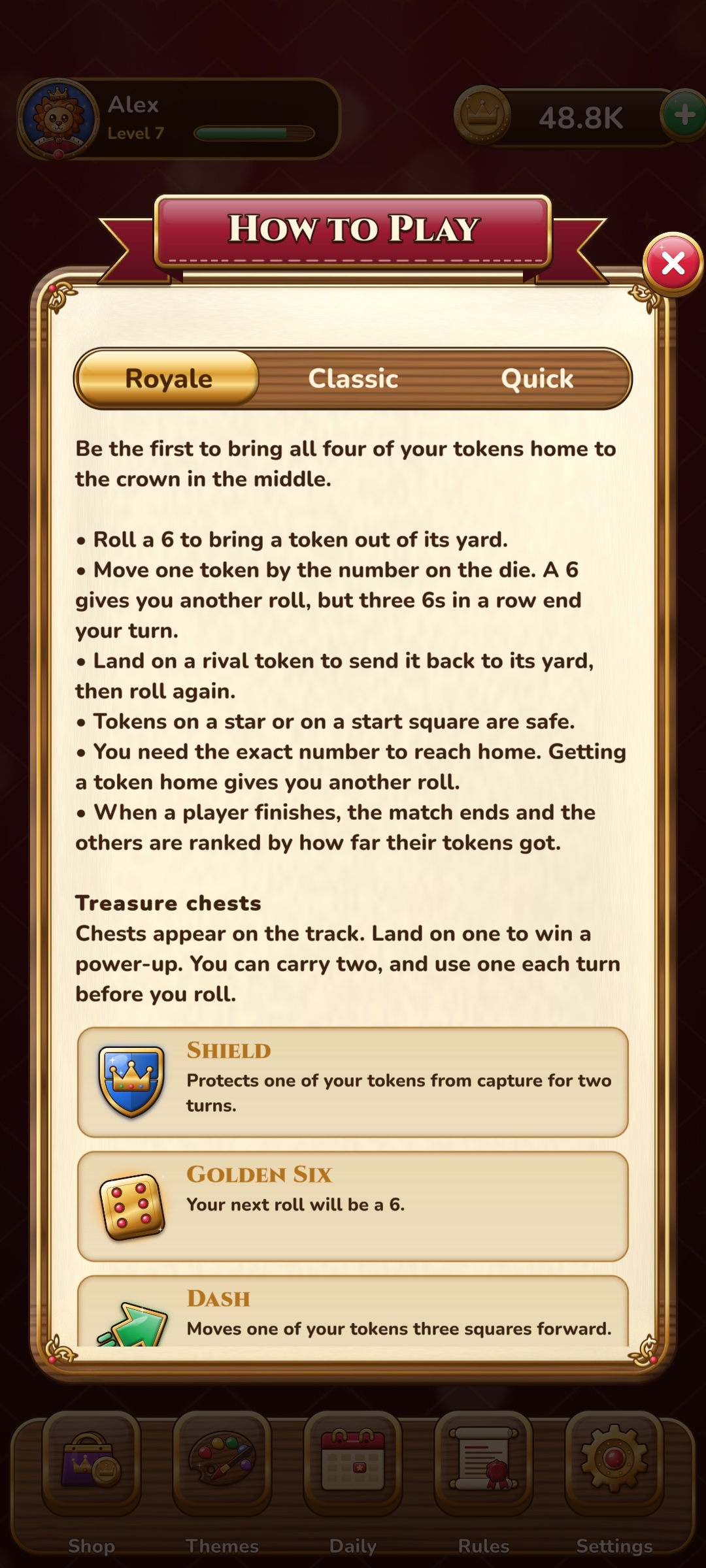

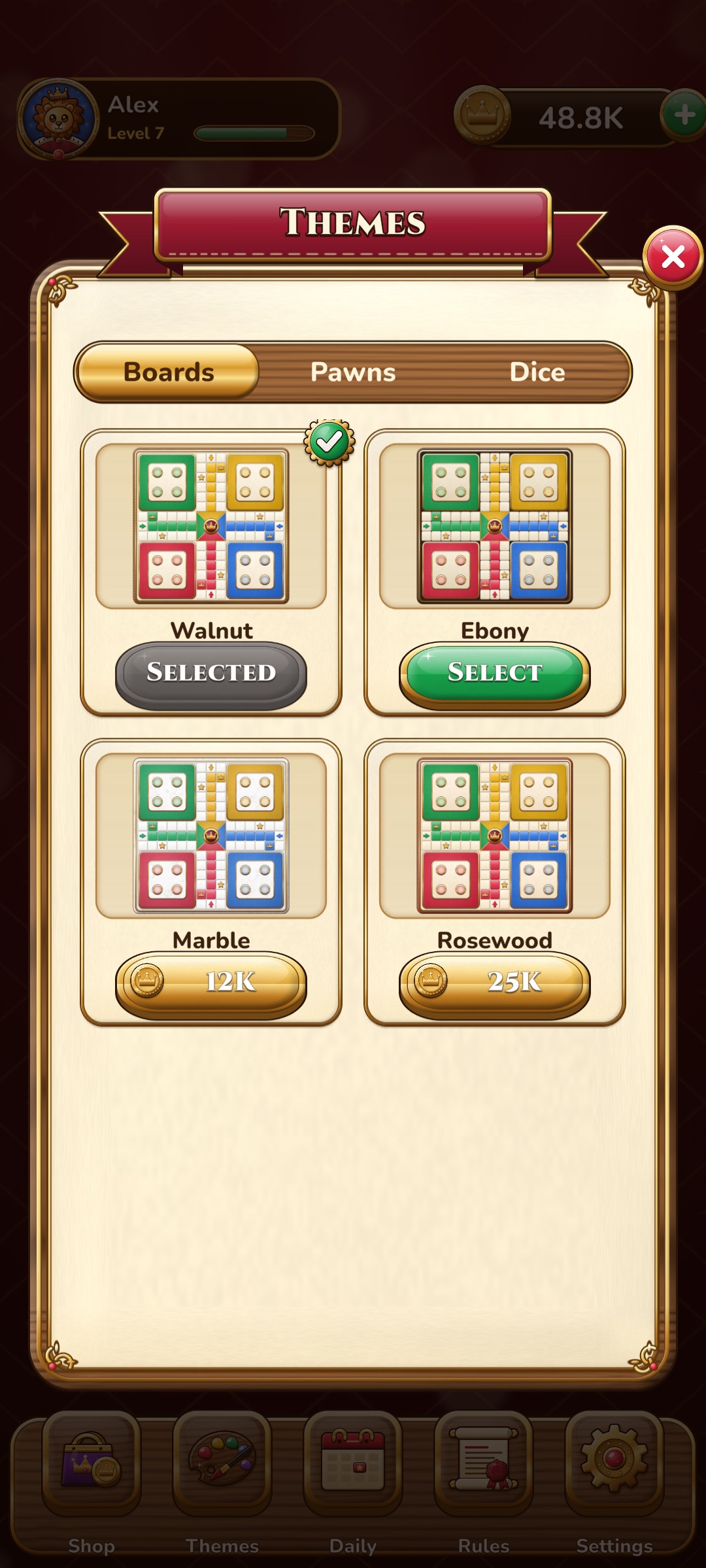

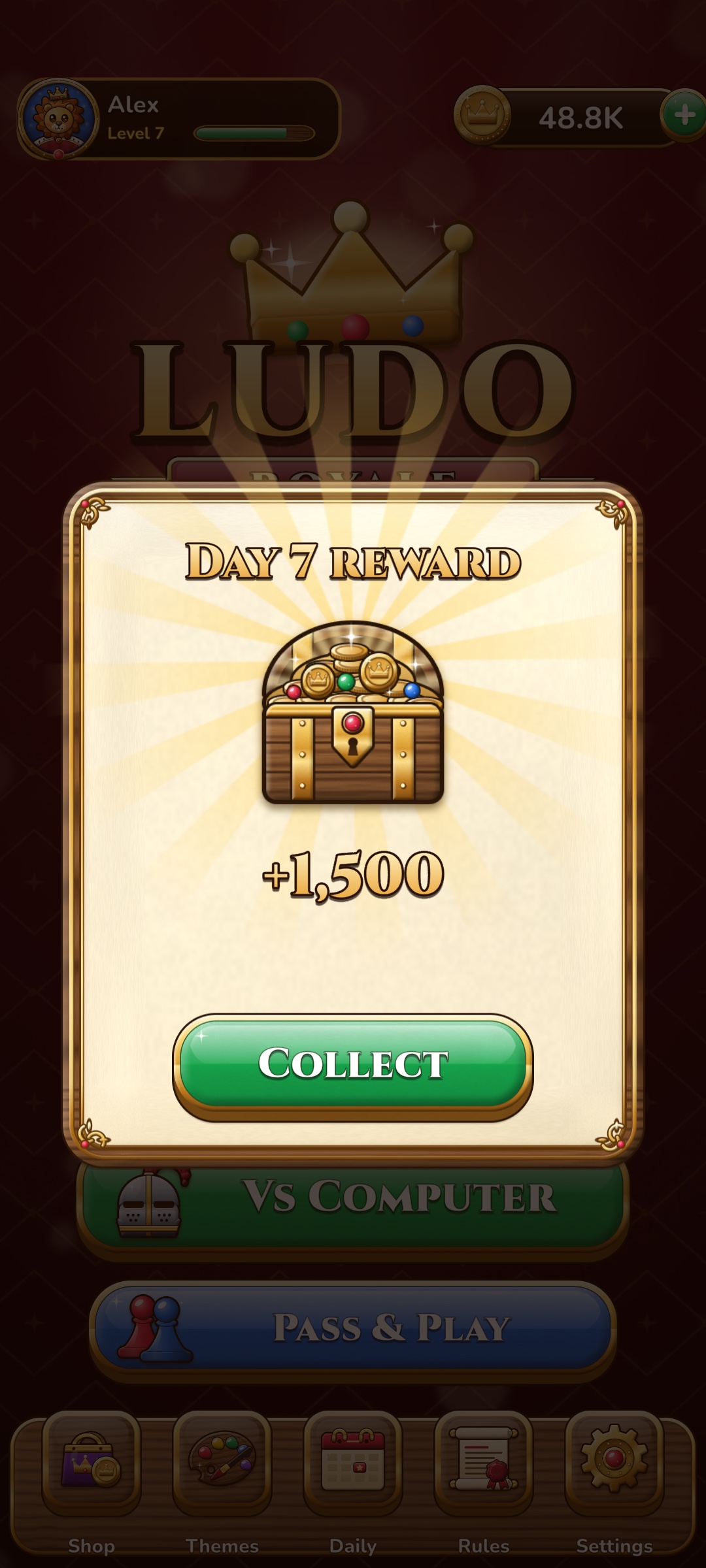
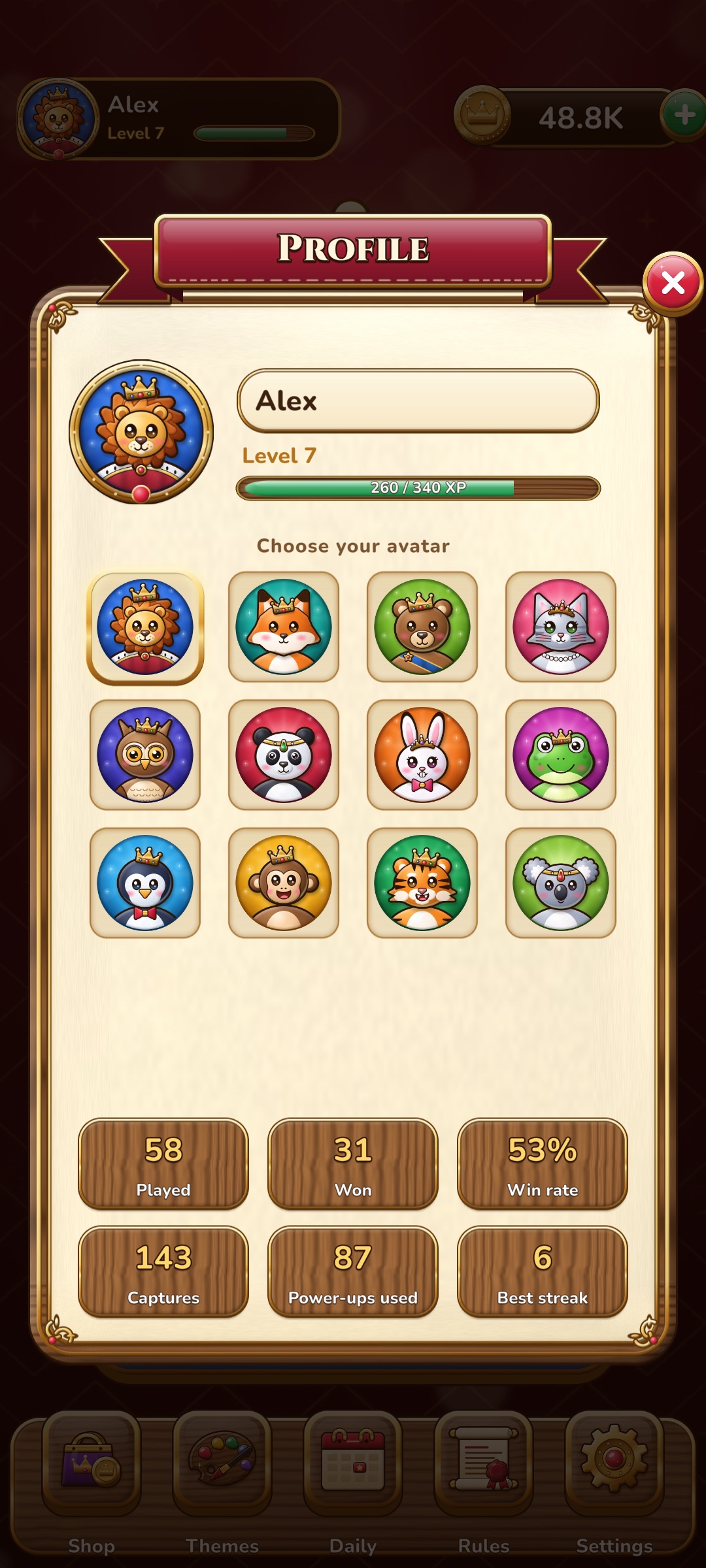
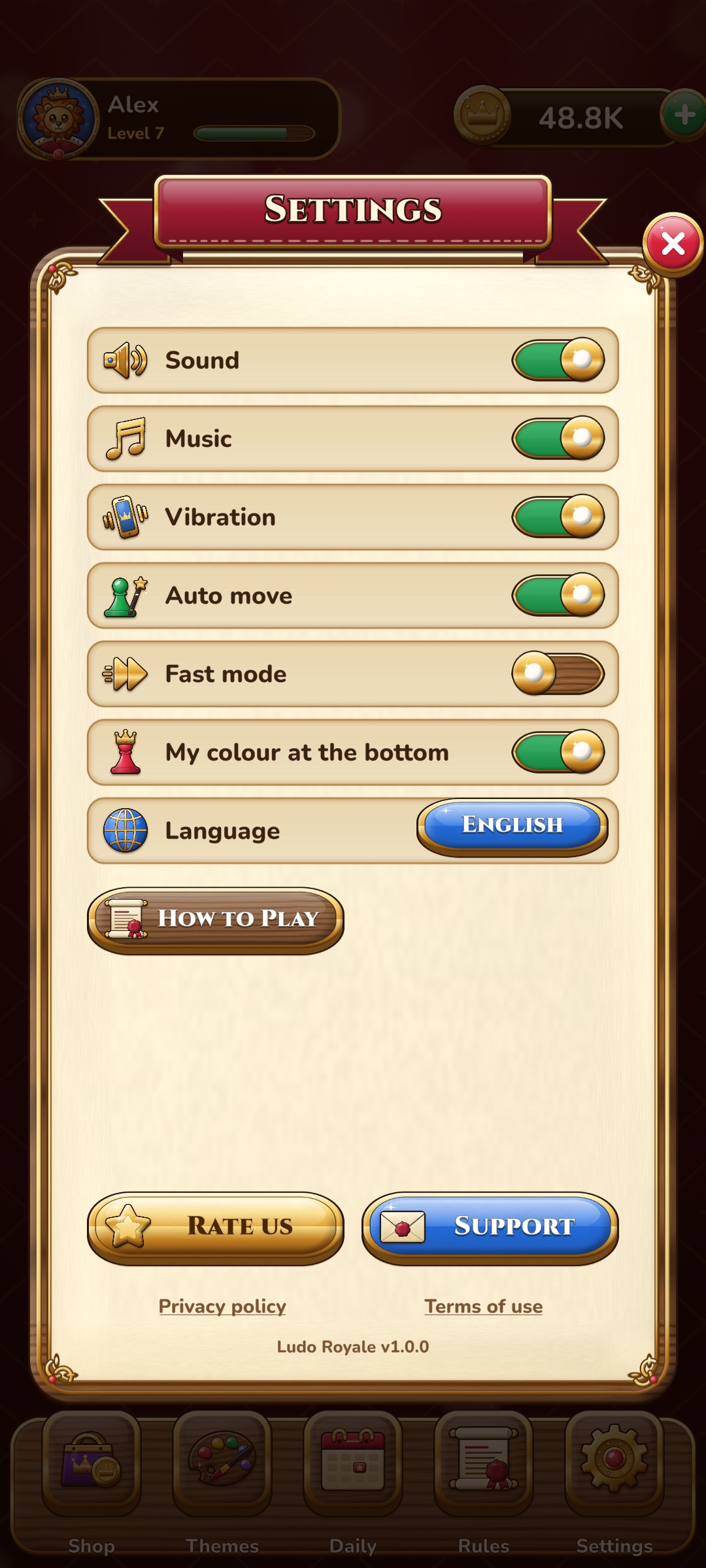
Click a screenshot to open it at full size (1080 × 2400, taken on an Android phone), or see them all on the full-size screenshots page.
How the game plays
The rules (Classic)
- Each player has four tokens in a yard. Roll a 6 to bring a token out onto its start square.
- Move one token by the number on the die, clockwise around the track, then up the home column of its colour to the crown in the middle.
- A 6 gives another roll, but three 6s in a row end the turn without a move.
- Landing on a rival token sends it back to its yard, and gives another roll. Tokens on a star or on a start square are safe. Tokens of the same colour can share a square.
- A token needs the exact number to reach home; getting a token home gives another roll.
- The first player to bring all four tokens home wins. The match then ends and the other players are ranked by how far their tokens got (the setting Rank Everyone plays on until every place is decided).
Royale: treasure chests and power-ups
Royale adds treasure chests to the track (two at the start, at most three, a new one after most rounds). A token that stops on a chest opens it and wins a power-up for its player's bag (two slots). On their turn, before rolling, players may use one power-up: tap it, and for the power-ups that act on a token, tap the token.
| Power-up | What it does |
|---|---|
| Shield | One of your tokens can't be captured for your next two turns. A rival that lands on it is blocked. |
| Golden Six | Your next roll is a 6. |
| Dash | Moves one of your tokens three squares forward. It can capture and open chests. |
| Swap | One of your tokens trades places with the nearest rival token ahead of it (never sends a rival forward). |
| Thunder | Sends the leading rival token back to its yard, unless it is on a safe square or shielded. |
Quick
Every player starts with one token on the track, a 1 or a 6 brings a token out, and two tokens home win. All the other Classic rules apply.
Vs Computer and the tables
The Vs Computer setup picks the mode, 2 to 4 players, your colour, the difficulty and a table. Each player pays the table's entry into the pot; the winners share it (2 players: all to the winner; 3 players: 70% / 30%; 4 players: 60% / 30% / 10%). Higher tables unlock with your level. Leaving a match early loses the entry.
| Table | Entry | Unlocks at level |
|---|---|---|
| Squire | 100 | 1 |
| Knight | 500 | 3 |
| Baron | 2,500 | 6 |
| Duke | 10,000 | 10 |
| King | 50,000 | 15 |
Pass & Play has no entry and no coins: 2 to 4 seats, each one a person (with a name) or a computer player.
The game screen
Players sit in the four corners with their avatar, name and, in Royale, their two power-up slots. The die moves to the player whose turn it is. Tap the die to roll, then tap one of the glowing tokens. With Auto move (Settings) the game plays the move for you when every possible move is the same. The first match shows short hints. The sticker button (top right) sends a reaction; computer players react too. The pause button offers Resume, How to Play, sound and music, and Quit.
The match in progress is saved at the start of every turn. If the app closes, Continue on the home screen picks it up where it was.
Levels, XP and rewards
Every finished match gives XP (more for a win and for each capture). A new level gives coins (100 × the new level) and opens higher tables. The profile shows the level, XP and stats. The daily reward pays more for each day in a row (100, 150, 200, 300, 400, 500 and a 1,500-coin chest on day 7); missing a day starts the row again.
Requirements
- Unity 6000.0 LTS (made and tested with 6000.0.84f1). Use 6000.0.58f2 or newer: earlier Unity 6 versions have the security issue CVE-2025-59489.
- Unity Hub modules: Android Build Support (with OpenJDK and Android SDK & NDK) and/or iOS Build Support.
- For iOS: a Mac with Xcode 16 or newer.
- Packages (already in the project's manifest): In-App Purchasing 5.4.4, uGUI 2.0 with TextMesh Pro.
- Optional: the Google Mobile Ads Unity plugin (not included, free from Google; tested with version 11.x) to show ads. Without it the game runs with on-screen placeholder ads in the editor only.
Device requirements
What your players' phones need to run the game as it comes in the package.
| Minimum | Notes | |
|---|---|---|
| Android version | Android 7.0 (API level 24) | The target API is the newest one installed in Unity, as Google Play requires. |
| Processor | ARM64 or ARMv7 | Store builds contain both. The demo APK is ARM64 only. |
| Graphics | OpenGL ES 3.0 or Vulkan | Required by Unity 6. All phones sold with Android 7 or newer have it. |
| Memory (RAM) | 2 GB recommended | The game itself uses about 250–300 MB: about 280 MB at start and 245 MB during a 4-player match, of which about 85 MB is graphics (peak about 370 MB while starting). |
| Storage | About 50 MB | The demo APK is 49 MB. Builds from Google Play (App Bundle) download only what the phone needs. The save takes a few KB. |
| Screen | Portrait | Phones from 16:9 to 21:9 and tablets (3:4); notches and cut-outs are kept clear (safe areas). |
| Internet | Not needed to play | Needed only for ads, purchases and the privacy consent form. |
| iPhone / iPad | iOS 13 | Unity 6's minimum (iPhone 6s or newer); uses Metal. |
Measured and tested on a Samsung Galaxy A71 (Android 11, 1080 × 2400, 8 GB RAM). The layouts were also checked at 9:16, 20:9 and 3:4 (tablet) screen shapes.
Your own accounts and possible costs
The project itself has no running costs and no server. To publish and earn money you need your own accounts:
| Account | Needed for | Cost |
|---|---|---|
| Google Play Console | Publishing on Android, in-app products | One-time registration fee (25 USD at the time of writing) |
| Apple Developer Program | Publishing on iOS, in-app products | Yearly fee (99 USD at the time of writing) |
| Google AdMob | Ads | Free; Google keeps a share of ad revenue |
The stores also keep a commission on in-app purchases (usually 15% or 30%). Check the current fees on each provider's website.
Getting started
- Unzip the download. In Unity Hub choose Add → Add project from disk and pick the
LudoRoyalefolder (the one that containsAssets). Open it with Unity 6000.0. - The first opening imports everything (a few minutes). If Unity asks to import TextMesh Pro Essentials, the project already contains them: you can close the window.
- Choose Tools → Ludo Royale → Open Main Scene, set the Game view to a portrait phone size (for example 1080×1920 or 1080×2400) and press Play.
- Open Tools → Ludo Royale → Game Config to see every setting.
- Set your own save secret now: Tools → Ludo Royale → Generate New Save Secret. It writes a new random secret into
SaveManager.cs. Do it once, before your first release (see the red notice at the top of this guide).
Project structure
Assets/LudoRoyale/
  Art/            images: Board (boards, pawns, markers), Dice, UI (panels, buttons, tables, app icon),
                  Icons (+ Glyphs), Avatars, Reactions, Backgrounds
  Audio/          21 sound effects and 2 music loops (WAV)
  Config/         the themes: Board_*, Pawns_*, Dice_* assets
  Documentation/  this guide
  Fonts/          Cinzel and Nunito (+ TextMesh Pro font assets and materials)
  Plugins/        iOS haptics helper
  Prefabs/        Logo and UI prefabs (token, product card, theme card)
  Resources/      GameConfig.asset and Localization/strings.csv
  Scenes/         Main.unity
  Scripts/
    Runtime/Core       the rules: Rules, Match, Referee, Bot, Track (plain C#, no Unity code)
    Runtime/Game       board, tokens, dice, player panels, match setup
    Runtime/UI         screens (Loading, Home, Game), popups and widgets
    Runtime/Framework  UI manager, tweens, localization, themes, Game Config
    Runtime/Services   save, wallet, progression, audio, haptics, clock
    Runtime/Ads        ads manager and placeholder ads
    Runtime/IAP        Unity IAP manager
    AdMob/             Google Mobile Ads provider (compiled only when the plugin is in the project)
    Editor/            menu, build checks, AdMob setup, art import rules, tests
  ThirdPartyLicenses/ font licenses
Assets/Resources/BillingMode.json   Unity IAP store choice for Android (Google Play)
Game Config
Select it with Tools → Ludo Royale → Game Config. Every field has a tooltip; hover a field name to read it.
Start here: the fields you'll change most
The numbers in these two pictures mark the fields buyers usually change. Everything else can keep its value. Click a picture to open it at full size.

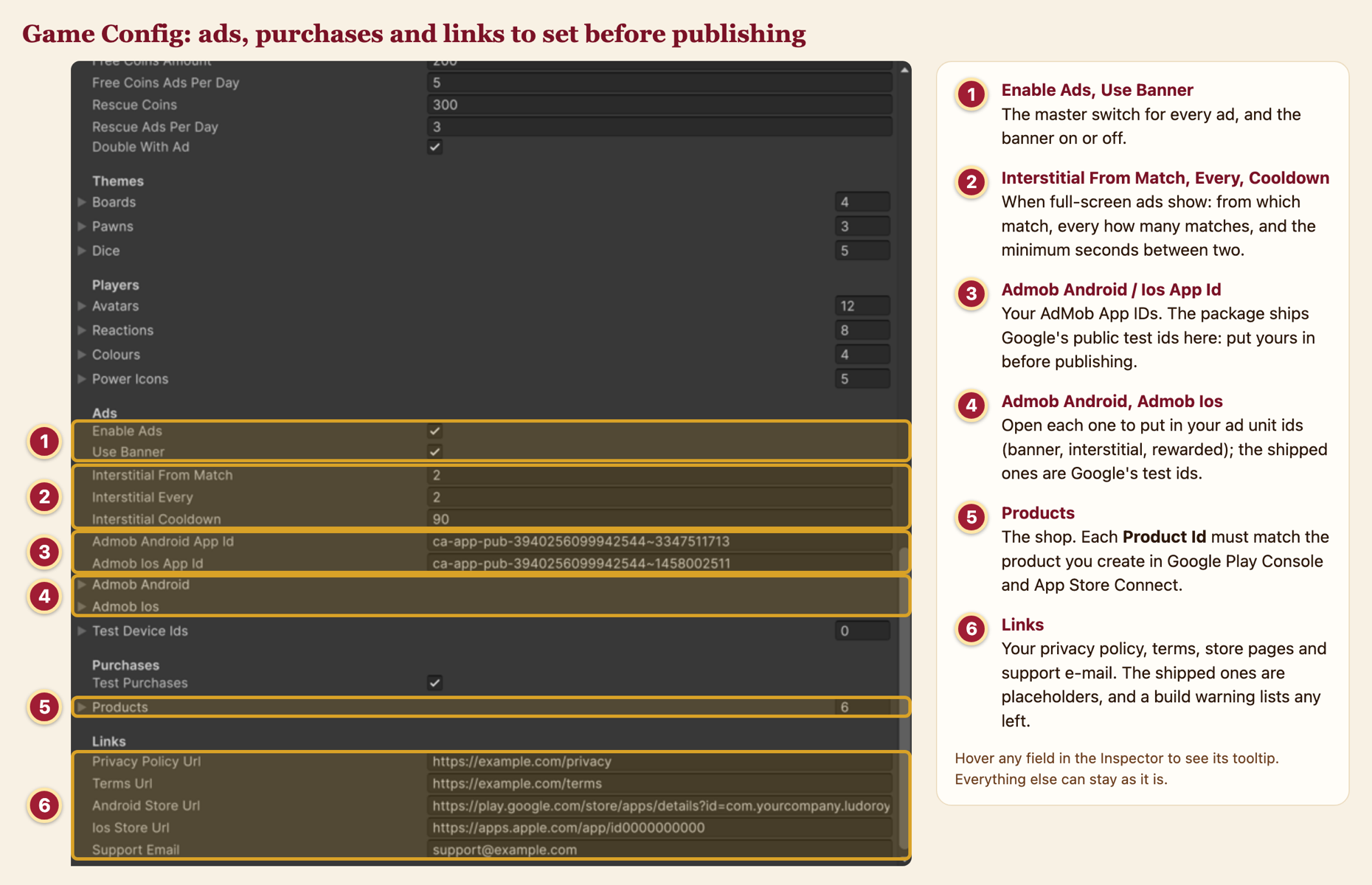
All the settings
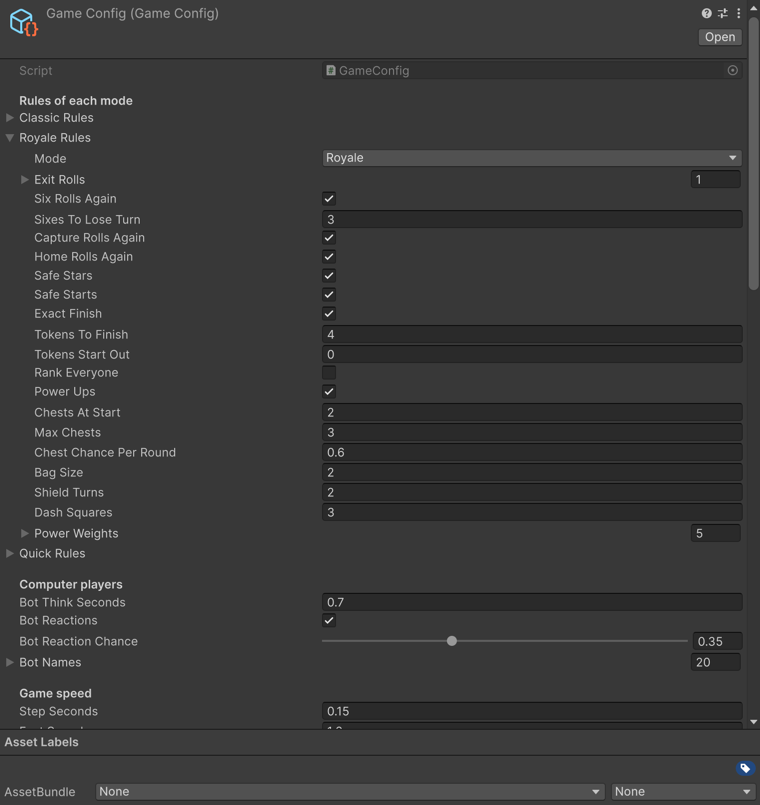
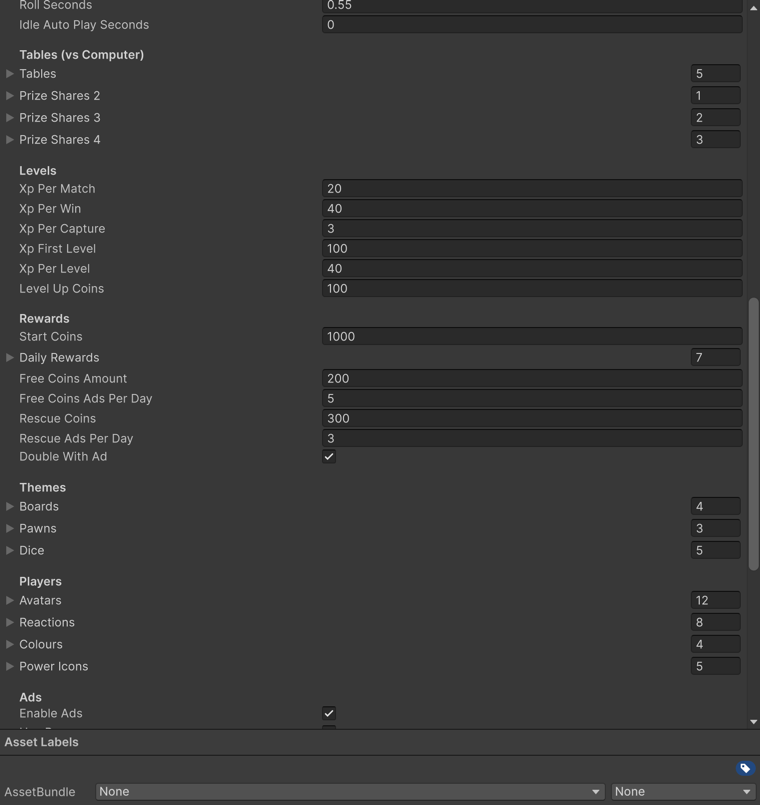

| Section | Fields |
|---|---|
| Rules of each mode | Classic Rules, Royale Rules, Quick Rules: every rule of a mode (see Rules engine). |
| Computer players | Think time, stickers and their chance, the names given to computer players. |
| Game speed | Seconds per square, the Fast setting's speed-up, die spin time, auto-play after idle seconds (0 = never). |
| Tables | Id, name key, entry, unlock level, card and crest images of each table; the prize shares for 2, 3 and 4 players. |
| Levels | XP per match, per win and per capture, XP to level 2 and the step per level, level-up coins. |
| Rewards | Start coins, the 7 daily rewards, free coins per ad and per day, rescue coins, double winnings with an ad. |
| Themes | The boards, pawn sets and dice of the Themes popup (the first of each list is free). |
| Players | Avatars, stickers, the four player colours of the interface, the power-up icons. |
| Ads | Master switch, banner, when interstitials show, AdMob App IDs and ad unit ids (Android and iOS), test device ids. |
| Purchases | Test purchases switch and the products of the shop. |
| Links | Privacy policy, terms, store pages for the Rate button, support e-mail. |
Worked examples
Each example changes one value and says what players see. Change a value, press Play, and try it.
Rules of each mode (open Royale Rules, or Classic / Quick)
Computer players
Game speed
Tables
Levels
Rewards
Themes
Config/Board_Marble, field Price). The Themes popup now asks 6,000 coins. Remove Board_Rosewood from the Boards list: it disappears from the Themes popup, and players who had selected it see the first board of the list.Players
Art (see Reskinning).Ads
Purchases
Links
Rules engine & computer players
The rules live in Scripts/Runtime/Core, in plain C# with no Unity code: Rules (the settings), Match (the state: tokens, bags, chests, turn), Referee (legal moves, rolling, moving, captures, power-ups) and Bot (computer players). The game screen only shows what the referee decides. The project includes automated tests you can run yourself (see Testing your changes): the full set plays 10,800 simulated matches (every mode, 2 to 4 players, all three difficulty levels) and makes more than 300 million rule checks.
Rule settings
| Field | Meaning | Classic / Royale / Quick |
|---|---|---|
| Exit Rolls | Rolls that bring a token out of its yard | 6 / 6 / 1 and 6 |
| Six Rolls Again, Sixes To Lose Turn | A 6 gives another roll; this many 6s in a row end the turn (0 = never) | on, 3 |
| Capture Rolls Again, Home Rolls Again | Bonus rolls for a capture and for a token reaching home | on |
| Safe Stars, Safe Starts | Tokens on stars / start squares can't be captured | on |
| Exact Finish | The exact number is needed to reach home | on |
| Tokens To Finish, Tokens Start Out | Tokens to bring home; tokens already out at the start | 4, 0 / 4, 0 / 2, 1 |
| Rank Everyone | Play on until every place is decided | off |
| Power Ups | Treasure chests and power-ups | off / on / off |
| Chests At Start, Max Chests, Chest Chance Per Round | How many chests and how often a new one appears | 2, 3, 0.6 |
| Bag Size, Shield Turns, Dash Squares | Power-ups carried; turns a Shield lasts; squares a Dash moves | 2, 2, 3 |
| Power Weights | Chance of each power-up in a chest (Shield, Golden Six, Dash, Swap, Thunder); 0 turns one off | 26, 18, 24, 18, 14 |
You can, for example, make a "Royale Quick" by turning Power Ups on in the Quick rules, or remove Thunder by setting its weight to 0.
Computer players
Every legal move gets a score from progress, captures, safety (how many rival tokens could reach the square) and chests. Easy adds a lot of randomness and sometimes plays a random move, Normal a little, Hard none, and Hard also looks one roll ahead to avoid moves that rivals could punish. Each computer player gets a style that weights these scores: Balanced, Hunter (loves captures), Guard (plays safe) or Sprinter (races home). Computer players use power-ups when they are worth it (Easy only sometimes) and send stickers after big moments.
Testing your changes
After you change the rules (Scripts/Runtime/Core), the save data or the texts, run the included tests. They need no extra package.
| Tools → Ludo Royale → Tests → | What it checks | Time |
|---|---|---|
| Run Quick Tests | Hand-made rule situations (leaving the yard, sixes, captures, shields, exact finish, chests), the save system (edited, rejected and restored saves), saves made by older and newer versions, the language fallback, and 600 simulated computer matches with every rule checked after every action. | About 10 seconds |
| Run Full Rules Simulation | The same, with 10,800 simulated matches: every mode, 2 to 4 players, every difficulty (over 300 million checks). | About 3 minutes |
- Results: a dialog says whether every check passed. The Console shows one line per simulated set, a line for each failed check (
[Ludo Royale tests] FAIL: …) and a summary. - The code is in
Scripts/Editor/LudoRoyaleTests.cs. To add a check, callCheck(condition, "what it means")in one of its methods. To test a new rule, copy one of the situations inRuleChecks(): place the tokens, roll, play the move, then check the result. - The save checks use this computer's saved progress and put it back at the end. Stop Play mode before running the tests.
- Command line (for a build server):
Unity -batchmode -projectPath <project> -executeMethod LudoRoyale.EditorTools.LudoRoyaleTests.RunFromCommandLine -quit, with-fullfor the full simulation. The exit code is 0 when every check passes and 1 otherwise.
How the code fits together
The game has two layers. The Core layer (Scripts/Runtime/Core, namespace LudoRoyale.Core) holds the rules and knows nothing about Unity. The Game layer (screens, board, tokens, dice) shows what the Core decides and turns taps into Core calls.
Roll(value), Play(move), UsePower(power, token) change the Match and write Notes: what happened, in order.ChooseMove and ChoosePower for computer players. They read the Match through the Referee, never change it.Referee.NewMatch.One turn, step by step
GameScreen.Begin(match)wraps the Match in aRefereeand startsRun(), which loops untilmatch.phaseis Over.- Roll phase.
BeginTurnsaves the Match (for Continue). A person taps a power-up or the die; a computer player getsBot.ChoosePower. A power-up goes toreferee.UsePower. DoRollpicks the value (always 6 after Golden Six), spins the die, then callsreferee.Roll(value).PlayNotesplays each Note withAnimate(note): Rolled, NoMove, TurnLost, ExtraRoll…- Move phase. A person taps a glowing token (or Auto move picks the only move); a computer player uses
Bot.ChooseMove.referee.Play(move)moves the token and writes Moved, Captured, ChestOpened, Home, Finished…, whichAnimateturns into hops, effects and sounds. - When the Referee ends the match,
Finish()records the rewards (Progression.RecordMatch) and opens theResultPopup.
Where to change what
| You want to… | Change |
|---|---|
| Change a rule | First the Rules in the Game Config; for new rules, Referee (Roll, Play, Advance, EndTurn). Then run Tools → Ludo Royale → Tests (see Testing your changes). |
| Add or remove a power-up | See Adding a power-up and Removing a power-up. |
| Change how computer players play | Bot.ChooseMove, Bot.ChoosePower and the style weights in Bot.For. |
| Add an effect or sound to an event | GameScreen.Animate: one case per NoteKind. |
| Change where tokens stand | BoardLayout (the 15×15 grid) and BoardView. |
| Play online | Not included. The Referee gives the same result for the same rolls and choices (chest positions come from a seed stored in the Match), so a networked version would send the rolls and choices between devices. |
Adding a power-up
This example adds Lucky Roll: the next roll is a 4, 5 or 6. Every step names the file and shows the code. The bag slots, the flying icon, the announcement and the How to Play list work for any power-up without changes.
- Core/Match.cs: add the power-up at the end of the list (saves store the number, so never reorder), raise the count, and add a flag to the Match.
public enum Power { None = -1, Shield = 0, GoldenSix = 1, Dash = 2, Swap = 3, Thunder = 4, LuckyRoll = 5, // new: always at the end } public static class Powers { public const int Count = 6; ... } // in class Match, next to goldenSix public bool luckyRoll; - Core/Referee.cs: when it can be used, what it does, and the roll.
// in CanUse(power), in the switch case Power.LuckyRoll: return !M.luckyRoll && !M.goldenSix; // in UsePower(power, token), in the switch case Power.LuckyRoll: M.luckyRoll = true; break; // in Roll(value), right after the Golden Six line if (M.luckyRoll) { value = Math.Max(4, value); M.luckyRoll = false; } // in EndTurn(), next to M.goldenSix = false; M.luckyRoll = false; - UI/Screens/GameScreen.cs, in
DoRoll: the die must show the same number.int value = match.goldenSix ? 6 : match.luckyRoll ? Random.Range(4, 7) : Random.Range(1, 7); - Core/Bot.cs, in
Evaluate: how much a computer player wants it. Normal players use a power-up worth 26 or more, Hard ones 18 or more. Without a case it is worth 0 and computer players never use it.case Power.LuckyRoll: pick.value = 30f; break; - Chances: in
Core/Rules.csadd a 6th value topowerWeights({ 26, 18, 24, 18, 14, 16 }), and in the Game Config open Royale Rules → Power Weights, set the size to 6 and the 6th value to 16. A missing weight counts as 0, and the power-up never comes out of a chest. - Icon: a 256×256 picture in
Art/Icons(for exampleic_power_lucky.png), added as the 6th entry of Game Config → Players → Power Icons (the list follows the enum order). - Texts: two rows in
strings.csv. The key ispower_plus the enum name in lower case. Empty cells fall back to English.
A text that contains a comma goes between double quotes, as above (spreadsheet programs do this for you).power_luckyroll,Lucky Roll,Lancer chanceux,Tirada de suerte,... power_luckyroll_info,"Your next roll is a 4, 5 or 6.","Votre prochain lancer sera un 4, 5 ou 6.",... - Optional: an effect when it is used, in
GameScreen.Animate,case NoteKind.PowerUsed, for exampleif (n.power == Power.LuckyRoll) AudioManager.Play(Sfx.PowerUp);
Powers.AimsAtOwnToken, and in Referee.PowerTargets, which lists the tokens that can be chosen. The game then asks the player to tap a token.Saves and live games
The power-ups in a player's bag are saved as numbers (their place in enum Power), inside the match in progress (the Continue match). The player's coins, level and themes don't store power-ups at all, so they are never affected.
| Situation | What happens |
|---|---|
| Your new version (with Lucky Roll) opens a match saved by an older version | The match continues normally. Its saved rules list only the old chances, so chests in that match never give Lucky Roll; matches started after the update do. Fields the old save doesn't have (luckyRoll) start with their default value (false). |
| An older version opens a match saved by a newer one (only if a player installs an older build) | Nothing breaks: the unknown power-up stays in the bag but shows as an empty slot, can't be used, and computer players ignore it. Unknown fields in the save are ignored. |
The rules that keep this true:
- Add new power-ups at the end of
enum Power, with the next number. Never reorder or renumber them: saved numbers would then mean another power-up. - To take a power-up out of a live game, keep its enum value and set its weight to 0, so it stops coming out of chests while old bags still read correctly.
- Give new fields a safe default (
false,0, or a value in the declaration): that is what saves from older versions get.
Both cases are covered by the included tests (Tools → Ludo Royale → Tests → Run Quick Tests): they save and load a match with an unknown power-up, and load old rules without the new weight. See Testing your changes.
Removing a power-up
Example: removing Swap, the 4th power-up. One setting does the job; the other steps tidy up the rest. Nothing has to be deleted from the code, which keeps saved games working.
- The change: Game Config. Open Tools → Ludo Royale → Game Config → Rules of each mode → Royale Rules → Power Weights. The five values are, in this order: Shield, Golden Six, Dash, Swap, Thunder. Set the 4th value (Swap) to 0. If you turned Power Ups on in Classic Rules or Quick Rules, do the same there.
What players see after it: chests never give Swap (to anyone, computer players included), and How to Play lists only the other four, because a power-up whose value is 0 is hidden there automatically. The other four keep their chances, now counted out of the values that are above 0. - UI slots: nothing to change. The two power-up slots in each player's corner show whatever that player holds, so Swap simply never appears there. The rows of the How to Play list are hidden by step 1.
- Icon: keep the entry. In Game Config → Players → Power Icons, leave the 4th entry where it is: icons are matched to power-ups by their position, so removing the entry would give Thunder the wrong picture. If you don't want the picture in your project, you may delete
Art/Icons/ic_power_swap.png; the entry then shows None, which is fine. - Texts: two rows. In
Resources/Localization/strings.csv, the rowspower_swap(the name) andpower_swap_info(the How to Play line) are no longer shown anywhere. Leave them, or delete both rows. The general rules text (rules_royale) doesn't name any power-up, so it needs no change. - Sound (optional):
Audio/sfx_swap.wavis only played when a Swap happens. You may delete it; the Swap field of the AudioManager object in the scene then shows None. - Check it: press Play, open How to Play → Royale: four power-ups are listed. Play a Royale match: chests only give the four others.
Optional: removing its code as well
Only if you want no trace of Swap in the scripts. Keep Swap = 3 in enum Power: saves store power-ups by number, and renumbering would turn a saved Swap into Thunder. Then delete, in this order (the project compiles again after the last one):
Core/Bot.cs: thecase Power.Swap:block inEvaluate.UI/Screens/GameScreen.cs: thecase NoteKind.Swapped:block inAnimate.Core/Referee.cs: thecase Power.Swap:blocks inPowerTargetsand inUsePower, then theSwapPartnermethod.Core/Match.cs:|| p == Power.SwapinPowers.AimsAtOwnToken.NoteKind.Swappedmay stay (it is not saved).Services/AudioManager.cs:Sfx.Swap, theswapfield and its line in the clip list (optional).
Saved games: a match saved before the change keeps its own copy of the rules, so a Swap that is already in a player's bag stays usable in that match. If you also removed the code, that Swap shows as an empty slot that can't be used instead; nothing breaks (see Saves and live games).
Economy & rewards
| Source | Default | Game Config field |
|---|---|---|
| New player | 1,000 coins | Start Coins |
| Winning a table | Entry × players × share of the place | Tables, Prize Shares 2 / 3 / 4 |
| Level up | 100 × the new level | Level Up Coins |
| Daily reward | 100, 150, 200, 300, 400, 500, 1,500 | Daily Rewards |
| Free coins (rewarded ad in the shop) | 200, up to 5 a day | Free Coins Amount, Free Coins Ads Per Day |
| Rescue (can't afford a table) | 300 for an ad, up to 3 a day | Rescue Coins, Rescue Ads Per Day |
| Double winnings | An ad doubles the coins of a match | Double With Ad |
Coins won are saved as "pending" the moment they are won and added to the wallet when the player collects them, so closing the app on a reward screen never loses it.
Themes
Each board, pawn set and die is an asset in Config: Board Theme (board image, background, price, name key), Pawn Skin (four pawn images: red, green, yellow, blue) and Dice Skin (six faces). The Game Config lists them; the first of each list is free, the others are bought with coins in the Themes popup.
Add a theme
- Right-click in
Config→ Create → Ludo Royale → Board Theme (or Pawn Set / Dice) and give it a unique id. - Assign its images (same size as the included ones: boards 1080×1080 with the 15×15 grid of the included boards, pawns 160×200, dice faces 220×220), a price and a name key.
- Add the name key with its translations to
strings.csvand the asset to the matching list of the Game Config.
Reskinning
- Images: replace the files in
Artwith yours, keeping the file names and sizes; everything picks them up. Panels and buttons are 9-sliced (their borders are set byEditor/ArtImportRules.cs); if you change their corners, adjust the border there and run Reset Art Import Settings. - Logo:
Prefabs/Logo.prefab(crown image, "LUDO" text, "ROYALE" ribbon). - App icon:
Art/UI/AppIcon(full icon, round icon, and the background and foreground layers of the Android adaptive icon). They are set in Player Settings → Icon. - Colours: the four player colours are in the Game Config (Players); the board and pawns are images.
- Fonts: titles use Cinzel, texts Nunito. To change one, create a TextMesh Pro font asset from your font with the same characters and assign it to the texts (or replace the source font of the existing font asset).
- Sounds and music: replace the WAV files in
Audio(same names), or assign other clips on the AudioManager object of the scene. - Name and ids: Player Settings (company, product name, package name / bundle id), the product ids in the Game Config and the links.
Image sizes
Make your pictures exactly this size (PNG with transparency). 9-slice pictures stretch to any size: only their middle grows, the borders (left, bottom, right, top, in pixels) keep their shape. Keep corners and frames inside those borders.
| Picture | Files (in Art) | Size (px) | Notes |
|---|---|---|---|
| Boards | Board/board_<id> | 1080 × 1080 | 15 × 15 squares inside a 36 px margin (a square is 67.2 px). Keep the yards, track and centre where they are: tokens are placed on this grid. |
| Pawns | Board/Pawns/pawn_<set>_<red|green|yellow|blue> | 160 × 200 | The pawn stands on the bottom centre. |
| Token marks | Board/ pawn_shadow, token_ring, shield_bubble, aim_arrow, chest_halo | 160×64, 192×192, 200×200, 120×120, 200×200 | Shadow, turn ring, Shield bubble, power-up arrow, glow under chests. |
| Dice | Dice/die_<id>_1 … _6, die_glow | 220 × 220, glow 300 × 300 | One picture per face. |
| Backgrounds | Backgrounds/bg_<id> | 1080 × 1920 | Portrait. Taller phones show it scaled, so keep the edges plain. |
| Avatars | Avatars/av_<name> | 256 × 256 | Shown in a round frame: keep the face inside a 240 px circle. |
| Stickers (reactions) | Reactions/re_<name> | 256 × 256 | Keep 12 px of margin. |
| Icons | Icons/ic_<name> (power-ups: ic_power_*) | 256 × 256 | Full colour, transparent background. |
| Glyphs | Icons/Glyphs/gl_<name> | 128 × 128 | White symbols drawn on round buttons. |
| Popup panel | UI/panel_popup | 360 × 360 | 9-slice 132, 132, 132, 132 |
| Cards, insets | UI/card, card_dark, inset, frame_select | 200×200, 200×200, 128×128, 220×220 | 9-slice 64 / 64 / 40 / 72 on every side |
| Buttons | UI/Buttons/btn_<colour> | 256 × 200 | 9-slice 90, 92, 90, 80. The face sits above a 3D foot. |
| Round and square buttons | UI/Buttons/btn_circle_<colour>, btn_square_wood | 200 × 216 | Not stretched. |
| Title ribbon, tag | UI/ribbon_red, UI/tag_red | 640 × 170, 220 × 90 | 9-slice 210, 0, 210, 0 and 40, 0, 70, 0 |
| Pills, counters | UI/pill_dark, pill_light, counter_pill | 192×96, 192×96, 280×100 | 9-slice 48 all sides; 50, 46, 50, 46 |
| Switches, tabs, bars | UI/toggle_on, toggle_off, toggle_knob, seg_track, seg_pill, bar_track, bar_fill, bar_fill_green | 200×100, 200×100, 100×100, 256×104, 200×88, 256×60 (bars) | 9-slice 50, 46, 50, 46 (toggles); 52, 50, 52, 50 (track); 44, 42, 44, 42 (pill); 28 all sides (bar track) |
| Player corner | UI/plaque, avatar_frame, power_slot, slot_glow, bubble | 420×150, 256×256, 140×140, 180×180, 240×220 | plaque 9-slice 70 all sides |
| Home dock | UI/dock | 512 × 220 | 9-slice 120, 40, 120, 90 |
| Tables | UI/Tables/table_<id>, crest_<id> | 300 × 360, crest 220 × 220 | table card 9-slice 70 all sides |
| Effects | UI/glow, rays, sparkle, rounded_white | 256×256, 512×512, 128×128, 64×64 | rounded_white 9-slice 22 (used for tinted shapes) |
| Logo crown | UI/logo_crown | 520 × 360 | The words are text in Prefabs/Logo.prefab. |
| App icon | UI/AppIcon/app_icon, app_icon_round, app_icon_background, app_icon_foreground | 1024 × 1024 | Android adaptive icon: keep the foreground artwork inside the central 66% (it is cropped to different shapes). |
After replacing pictures, run Tools → Ludo Royale → Reset Art Import Settings. It applies these borders and sizes again.
Localization
The game comes in English, French, Spanish, Portuguese (Brazil), German, Italian, Dutch, Indonesian and Turkish. On first launch it follows the phone's language; for any other phone language it starts in English. The player can change it at any time with the language button in Settings (each tap shows the next language), and the choice is kept.
All texts are in LudoRoyale/Resources/Localization/strings.csv: one row per text, the key first, then one column per language. Lines starting with # are comments.
key,en,fr,es,pt,de,it,nl,id,tr
level_n,Level {0},Niveau {0},Nivel {0},Nível {0},Level {0},Livello {0},Level {0},Level {0},Seviye {0}- Edit the file in any spreadsheet program and save it as CSV (UTF-8).
\nin a text is a line break. - The fonts are dynamic TextMesh Pro font assets: any letter that exists in Cinzel or Nunito (Latin alphabets, including Central European and Turkish letters) appears automatically. For other alphabets add a fallback font to the font assets.
- In the scene, texts use the Localized Text component with a key. In code, use
Loc.Get("key")orLoc.Format("key", value).
Adding a language, step by step (example: Polish, code pl)
- strings.csv: add a column at the end of the first line, then fill it in every row.
language_nameis the name shown on the Settings button. An empty cell shows the English text.key,en,fr,es,pt,de,it,nl,id,tr,pl language_name,English,Français,Español,Português,Deutsch,Italiano,Nederlands,Indonesia,Türkçe,Polski play,Play,Jouer,Jugar,Jogar,Spielen,Gioca,Spelen,Main,Oyna,Graj level_n,Level {0},Niveau {0},Nivel {0},Nível {0},Level {0},Livello {0},Level {0},Level {0},Seviye {0},Poziom {0} - Scripts/Runtime/Framework/Loc.cs, so phones set to that language start in it:
public static string FromSystemLanguage() { switch (Application.systemLanguage) { ... case SystemLanguage.Turkish: return "tr"; case SystemLanguage.Polish: return "pl"; // new default: return "en"; } } - Same file, for numbers written the local way (1 250 instead of 1,250):
static CultureInfo MakeCulture(string language) { ... "tr" => new CultureInfo("tr-TR"), "pl" => new CultureInfo("pl-PL"), // new _ => new CultureInfo("en-US"), ... } - Try it: press Play, open Settings and tap the language button until it shows Polski. Check every screen: long words may need shorter texts.
com.nosuchstudio.rtltmpro), and install it with Unity's Package Manager, following the instructions on its own page. Then add a font that covers the alphabet as a fallback font, and check every screen in that language, as texts that mix numbers and words may need small changes.
Support: RTL Text Mesh Pro, like any third-party package, is not part of Ludo Royale. It is made and supported by its own author, so installing, setting up or fixing it is outside the support for this item.
Ads (AdMob)
Ads go through AdsManager, which talks to a provider. The project includes the AdMob provider (Scripts/AdMob); it compiles only when Google's plugin is in the project (the LUDOROYALE_ADMOB define is added automatically), so the project always compiles with or without it.
Placements
- Banner: at the bottom of the screens (the layout leaves room for it).
- Interstitial: after a finished match, from the 2nd match, every 2 matches, at least 90 seconds apart (Game Config → Ads).
- Rewarded: free coins in the shop, rescue coins, double winnings.
No Ads (or the Royal Pack) removes banners and interstitials; rewarded ads stay, because the player chooses to watch them.
Set up AdMob
- Download the Google Mobile Ads Unity plugin from Google's AdMob documentation for Unity (search for Google Mobile Ads Unity plugin) and import it (Assets → Import Package → Custom Package). Accept the External Dependency Manager prompts.
- The Game Config already has Google's public test ids (publisher
ca-app-pub-3940256099942544): play the game and test ads appear. - In your AdMob account create an app for Android and one for iOS, and a banner, an interstitial and a rewarded ad unit for each.
- Put your App IDs and ad unit ids in the Game Config (Ads). The App IDs are copied into Google's settings automatically (or with Tools → Ludo Royale → Ads → Apply AdMob Setup Now).
- To see test ads with your real ids on your own phone, add its hashed device id (printed in the device log by the plugin) to Test Device Ids.
These are the ids in the shipped Resources/GameConfig.asset, all from Google's public test publisher ca-app-pub-3940256099942544 (Google lists them on the Enable test ads pages of its AdMob documentation for Android and iOS; search for AdMob test ads):
| Field | Android | iOS |
|---|---|---|
| App ID | ca-app-pub-3940256099942544~3347511713 | ca-app-pub-3940256099942544~1458002511 |
| Banner (adaptive) | ca-app-pub-3940256099942544/9214589741 | ca-app-pub-3940256099942544/2435281174 |
| Interstitial | ca-app-pub-3940256099942544/1033173712 | ca-app-pub-3940256099942544/4411468910 |
| Rewarded | ca-app-pub-3940256099942544/5224354917 | ca-app-pub-3940256099942544/1712485313 |
No other AdMob id is in the package: no scene, prefab, asset, settings or plugin file contains one, and there is no real (publisher-owned) ad unit id anywhere.
Consent (GDPR) and privacy options
The AdMob provider uses Google's User Messaging Platform: it asks for consent where required (EEA, UK, Switzerland) before loading ads, using the messages you publish in AdMob (Privacy & messaging). When the consent message applies, Settings shows a Privacy options button so players can change their choice.
In-app purchases
| Step | Needed? |
|---|---|
| Install Unity IAP | Nothing to do. Unity's Package Manager installs it when the project opens. |
| 1. Put your own product ids in the Game Config (Products) | Required to sell. |
| 2. Create the same products in Google Play Console and App Store Connect | Required to sell. |
| 3. Test with a license tester (Google Play) or a Sandbox account (App Store) | Required before you publish. |
| Google Play receipt check: paste your licensing key into the Receipt Validation Obfuscator | Recommended. Purchases work without it, but Android receipts aren't checked on the phone until you do it. |
| Checking purchases on your own server | Optional. Only if you build and host a server; the game sells without one. |
Your own store accounts are required and the stores charge fees (see possible costs).
Purchases use Unity IAP 5 (com.unity.purchasing 5.4.4), with Google Play Billing on Android and StoreKit 2 on iOS. Unity IAP is not copied into the project: Packages/manifest.json lists it, and Unity's Package Manager downloads it from Unity's own registry (packages.unity.com) when the project opens, under your Unity license. The LUDOROYALE_IAP define is set automatically for any 5.x version (asmdef version defines). If another major version is installed, the store code is switched off and a Console warning and a build warning tell you right away; purchases are never switched off silently.
On Android the store is chosen by Assets/Resources/BillingMode.json, set to Google Play. Keep this file: without it Unity IAP uses its fake test store on Android.
| Product (default id) | Kind | Gives |
|---|---|---|
| com.yourcompany.ludoroyale.coins_small / coins_medium / coins_large / coins_huge | Consumable | 5,000 / 30,000 / 80,000 / 250,000 coins |
| com.yourcompany.ludoroyale.noads | Non-consumable | No banner or interstitial ads |
| com.yourcompany.ludoroyale.royal_pack | Non-consumable | 50,000 coins, No Ads, the Ebony board, the Crown pawns and the Gold dice |
- Change the ids to your own in the Game Config (a build warning reminds you while they start with
com.yourcompany). - Create the same products in Google Play Console and App Store Connect. Google only returns products once a build is uploaded to a testing track.
- Add your Google account as a license tester to buy without being charged; on iOS use a Sandbox account.
Each purchase is validated, delivered, saved, and only then confirmed to the store. Delivered transaction ids are kept in the save, so a purchase is never delivered twice. One-time products come back by themselves after a reinstall; payments confirmed later show "Purchase pending" and are delivered when they go through. On iOS, Settings and the shop have a Restore purchases button, as Apple requires.
Testing: with Test Purchases ticked, purchases are simulated in the editor and in development builds while the store has no products yet. Release builds always use the real store.
Receipt validation
- a web address (HTTPS endpoint) running on a host of your choice, which the game calls after each purchase;
- server code that asks Google and Apple whether the purchase is real: a Google Cloud service account with access to the Google Play Developer API, and an App Store Connect API key for the App Store Server API;
- a small database to remember used purchases, and the hosting cost.
- Google Play: in Google Play Console copy your app's licensing key (Monetize with Play → Monetization setup). In Unity choose Services → In-App Purchasing → Receipt Validation Obfuscator…, paste it and press Obfuscate.
IAPManagerfinds the generatedGooglePlayTangleand checks every receipt, and that it is for the product bought. Until then, Android builds log "Google Play receipts are not validated yet". - App Store: StoreKit 2 verifies every transaction itself.
IAPManager.ServerValidation is the hook for this: when it is set, every purchase waits for your answer before it is delivered and confirmed. Parse JSON with a JSON parser (for example JsonUtility with small classes), never by searching the text.This example handles the cases a real server meets: a timeout, a few retries with growing pauses, error answers, and an answer that can't be read.
https://your-server.example/verify-purchase in the code below is not a real server; it only shows where your own server's address goes. The example is not part of the project: nothing is sent anywhere unless you add this script yourself, and even then it switches itself off (and logs an error) while the address is still the placeholder, so purchases keep working with the on-device checks. It starts checking purchases only once you put in the address of your own working server. Add it only when your server is running, and never publish it with the placeholder.using System;
using System.Collections;
using UnityEngine;
using UnityEngine.Networking;
using LudoRoyale;
// Put it on the GameController object (or any object that lives for the whole game).
public class PurchaseServerCheck : MonoBehaviour
{
// PLACEHOLDER, not a real server: replace it with your own server's address.
// While it is still this placeholder, the script switches itself off (see Awake).
const string Url = "https://your-server.example/verify-purchase";
const int Attempts = 3; // tries before giving up for this session
const int TimeoutSeconds = 10; // per try
[Serializable] class Answer { public bool valid; public string reason; }
void Awake()
{
if (Url.Contains("your-server.example"))
{
Debug.LogError("[IAP] PurchaseServerCheck is OFF: replace the placeholder Url with your own server's address.");
return; // purchases keep working with the on-device checks only
}
IAPManager.ServerValidation = (receipt, done) => StartCoroutine(Verify(receipt, done));
}
IEnumerator Verify(PurchaseReceipt receipt, Action<bool> done)
{
// receipt: productId, transactionId, store, receipt, googleOrderId, appleSignedTransaction
byte[] body = System.Text.Encoding.UTF8.GetBytes(JsonUtility.ToJson(receipt));
for (int attempt = 1; attempt <= Attempts; attempt++)
{
using (var req = new UnityWebRequest(Url, "POST"))
{
req.uploadHandler = new UploadHandlerRaw(body);
req.downloadHandler = new DownloadHandlerBuffer();
req.SetRequestHeader("Content-Type", "application/json");
req.timeout = TimeoutSeconds;
yield return req.SendWebRequest();
if (req.result == UnityWebRequest.Result.Success)
{
Answer answer = null;
try { answer = JsonUtility.FromJson<Answer>(req.downloadHandler.text); }
catch (Exception e) { Debug.LogWarning("[IAP] Unreadable answer: " + e.Message); }
if (answer != null)
{
if (!answer.valid) Debug.LogWarning("[IAP] Refused by the server: " + answer.reason);
done(answer.valid); // the server decided: deliver (true) or refuse (false)
yield break;
}
// unreadable answer: try again like a network error
}
else
{
long code = req.responseCode; // 0 = no answer at all (offline, timeout)
bool worthRetrying = req.result == UnityWebRequest.Result.ConnectionError
|| code == 0 || code == 408 || code == 429 || code >= 500;
Debug.LogWarning($"[IAP] Purchase check failed ({attempt}/{Attempts}): {code} {req.error}");
if (!worthRetrying) break; // other 4xx: the request itself is wrong
}
}
if (attempt < Attempts) yield return new WaitForSecondsRealtime(2f * attempt); // 2 s, then 4 s
}
done(false); // no answer for now: not delivered, the purchase stays pending (see below)
}
}What happens in each case:
- Placeholder address still in the code: the script logs an error at start and does nothing else; purchases work exactly as without it.
- Valid (
done(true)): the item is delivered, saved, and only then confirmed to the store. - Refused by your server (
done(false)withvalid: false): nothing is delivered and the purchase is never confirmed. The player sees "The purchase didn't go through". Google Play refunds purchases that are never confirmed after 3 days. - Server unreachable or failing (after the retries): the player sees the same message, but the purchase stays pending. Unity IAP gives unconfirmed purchases back to the game at the next start, so
IAPManagerasks your server again, and the player gets the item as soon as your server answers. - Call
doneexactly once per purchase, on the main thread (a coroutine is).
Your server checks the purchase with the store (Google Play Developer API purchases.products.get with the purchase token from the Google Play receipt; App Store Server API with the transaction id). It answers {"valid": true} only for a real purchase of that product that was not used before, and {"valid": false, "reason": "..."} otherwise.
Save data & cheating
SaveManager.Secret (Scripts/Runtime/Services/SaveManager.cs). You can also type your own long random text there. Until you do, the editor asks you once per session, a release build asks again before it starts (Generate and cancel build / Build anyway), the Console and every build show a warning, and a notice sits at the top of SaveManager.cs. Never change it after release.Coins, level, XP, stats, themes, purchases, settings and the match in progress are saved in PlayerPrefs (key ludoroyale_save) as JSON signed with HMAC-SHA256 and lightly scrambled.
What the default secret means for your game
The secret is the key that signs and scrambles the save. Whoever knows it can open a save, change it and sign it again, and the game accepts the result as genuine.
| Published with the default secret | Published with your own secret | |
|---|---|---|
| Who knows the secret | Everyone who has this package: the default secret is the same in every copy sold. | Only you. It is in your project and, compiled, inside your app. |
| Can a save be forged? | Yes, easily. A few lines of code are enough to open a save, change it and sign it again. One person could share a ready-made save editor that works on every game published with the default secret. | Only by someone with reverse-engineering skills who digs the secret out of your app's files, and only for your game. Editors made for the default secret don't work. |
- What a forged save can give a cheater: any number of coins, any level and XP, every board, pawn set and dice, the No Ads and Royal Pack benefits without paying, and any statistics.
- What it can't do: it only changes the game on the cheater's own phone. Ludo Royale has no online play, leaderboards or shared economy, so other players are not affected. It can't create store purchases (your sales reports stay correct), can't reach your store, AdMob or other accounts, and the save holds no personal data besides the name the player typed in the profile.
- What it costs you: mainly money. Players who forge a save don't buy coins, No Ads or the Royal Pack.
- How hard it is to reach the save: it is in the app's private storage on the phone. Reading or replacing it needs a rooted Android phone, a jailbroken iPhone or backup-editing tools, which most players don't have. For those who do, the default secret makes the rest trivial.
- Limits of any secret: it protects the saved file only. Cheat apps that change numbers in memory while the game runs (on rooted or jailbroken phones) work whatever the secret is, as in almost every offline game, and a skilled person can dig any secret out of an app. Your own secret stops casual cheating and shared tools; if your economy must resist determined cheaters (for example, if you add online play or leaderboards), keep the coins on a server.
In short: your own secret costs one click, as long as you set it before your first release. Changing it after release makes every existing save unreadable (see below).
When a save is rejected
A save that was edited, damaged, or signed with another secret is rejected at start:
- Nothing is deleted. The rejected save is kept on the phone as a backup (
ludoroyale_save_broken; a second one goes toludoroyale_save_broken_2), and a new game starts. - The player is told once, on the home screen: a Progress reset message ("The progress saved on this device couldn't be read, so a new game has started…") with a Support button that opens an e-mail to your Support Email with the subject "… support - progress reset".
- Automatic restore: at every start, if the normal save fails but a backup is valid with the current secret, the backup is restored by itself (and the save it replaces becomes the backup). So if an update changed the secret by mistake, putting the previous secret back in the next update gives every player their progress back.
- Purchases: No Ads and the Royal Pack come back from the store by themselves on Android, and with Restore purchases on iOS. Coins bought were used up when they were delivered, so the store doesn't give them back: for players who write to support, look up the order in Google Play Console or App Store Connect and decide (a refund, for example).
Daily rewards and the device clock
The daily reward and the daily ad limits follow GameClock, which never goes back: setting the clock back gives nothing, and a reward is free only on a later calendar day than the last one.
Building
Android
- File → Build Profiles → Android → Switch Platform.
- Player Settings: company and product name, package name (replace
com.yourcompany.ludoroyale), version and bundle version code. The project uses IL2CPP with ARM64 and ARMv7, minimum API 24 and the highest installed target API (Google Play requires a recent one). - Publishing Settings: create your own keystore (keep it and its passwords safe: every update must be signed with it).
- Tick Build App Bundle (Google Play) and build the .aab for Google Play.
iOS
- Switch to iOS, set the bundle id and team in Player Settings, build, and open the Xcode project.
- Add the In-App Purchase capability, set signing, and archive.
- If you use AdMob, follow Google's iOS steps (SKAdNetwork ids; the plugin's iOS settings).
com.yourcompany ids, Google's test ad ids and the IAP version.App Tracking Transparency (iOS)
On iOS, personalised ads need Apple's tracking permission. With AdMob, publish an IDFA explainer message in AdMob (Privacy & messaging): the UMP flow then shows Apple's prompt after its own message. Add a NSUserTrackingUsageDescription text in the plugin's iOS settings (Google Mobile Ads settings) so Xcode has it in Info.plist.
Publishing checklist
- New package name / bundle id, product name, company, version.
- Your own app icon, logo and (if you like) art, sounds and texts.
- Your own save secret (Tools → Ludo Royale → Generate New Save Secret), set once and kept in every update.
- Your AdMob App IDs and ad unit ids (no test id left), consent messages published in AdMob.
- Your product ids, created in both stores; Google Play receipt validation set up. If you added the server check (In-app purchases), your own server's address in it, never the placeholder.
- Your privacy policy, terms, store links and support e-mail in the Game Config (they ship as
example.com/yourcompanyplaceholders, and a build warning lists any that are left). - Your own keystore (Android) and signing team (iOS).
- Age ratings: the betting tables count as simulated gambling. Answer both stores' age-rating questionnaires with that in mind (see the note below).
- Test a full match, a purchase (license tester / Sandbox), a rewarded ad, the daily reward and Continue after closing the app.
- App Store: in the age-rating questionnaire of App Store Connect, Simulated Gambling (Infrequent or Frequent) is one of the answers that set the rating: infrequent leads to 13+, frequent to 18+, and some countries apply stricter local ratings. Also read section 5.3, Gaming, Gambling, and Lotteries, of Apple's App Review Guidelines.
- Google Play: the content rating questionnaire in Play Console asks about simulated gambling, and the answer raises the ratings shown in each region. Read the Developer Policy Center pages Real-Money Gambling, Games, and Contests and Families: coins must never be exchanged for money or prizes of real value, and apps aimed at children may not contain simulated gambling, so don't choose a children's age group as the target audience.
- Store rules and ratings change: read the current pages before you submit (search for the names above). If you need a lower rating, the tables can be turned into free tables with fixed prizes in code (
PlaySetupPopup.StartComputertakes the entry,GameConfig.Prizecalculates the winnings).
Code overview
| Class | Role |
|---|---|
Core.Referee | All the rules: rolls, legal moves, moving, captures, chests, power-ups, turn order, the end of the match. Writes Notes that the game screen animates. |
Core.Bot | Chooses moves and power-ups for computer players. |
GameScreen | Runs a match: turns, input, animations, saving the match each turn, the results. |
BoardView, TokenView, DiceView, PlayerPanelView | The board, tokens, chests and effects; the die; the four player corners. |
MatchSetup | Builds a match for Vs Computer or Pass & Play. |
UIManager, UIScreen, UIPopup | Screens, popups, toasts and the Android back button. |
SaveManager, PlayerData, Wallet, Progression | The signed save, coins, XP, levels and match rewards. |
AdsManager, AdMobProvider | Ads and consent. |
IAPManager | Products, purchases, delivery, restore, receipt checks. |
Loc, LocalizedText | Texts and languages. |
GameConfig, Themes | Settings and the current board, pawns and dice. |
LudoRoyaleTests (Editor) | The automated tests of the rules, the save system and the languages (Tools → Ludo Royale → Tests). |
Troubleshooting
Common questions (no code needed)
| What you see | Why, and what to do |
|---|---|
| Progress (coins, level, themes) is gone after closing the game |
|
| A player says the game showed "Progress reset" and started over |
|
| The daily reward doesn't appear |
|
| A theme was bought but doesn't show |
|
| Coins that were bought didn't arrive |
|
| No sound or music |
|
| The Continue button is missing | Continue appears only when a match was left unfinished. Finishing a match or quitting it (Pause → Quit) removes it. |
| "Banner ad (test)" or test ads show | The game shows placeholder or Google test ads until your own AdMob ids are in the Game Config and Google's plugin is imported (see Ads). |
| The game is in English, but the phone is set to another language |
|
Reading the logs
Several answers here say "look at the log". The game writes its messages with a tag in front, so they are easy to find: [Ludo Royale], [Save], [IAP], [Ads].
| Where | How |
|---|---|
| Unity editor | Window → General → Console while you press Play. The full log file: in the Console's ⋮ menu, Open Editor Log. |
| Android phone, with Android Studio |
|
| Android phone, with the command line | With USB debugging on (above) and Google's platform-tools installed (they come with the Android SDK that Unity installs):adb logcat -s Unity shows the game's messages live; adb logcat -d -s Unity > log.txt saves them to a file you can send. |
| Android, inside Unity | Install the Android Logcat package (com.unity.mobile.android-logcat, Package Manager → Unity Registry), then Window → Analysis → Android Logcat. |
| iPhone / iPad, from Xcode | Run the game from Xcode (Product → Run): the messages appear in the debug area at the bottom (View → Debug Area → Activate Console). |
| iPhone / iPad, any build | Connect the device to a Mac. In Xcode: Window → Devices and Simulators, select the device, Open Console (or use the Mac's Console app with the device selected), start the game and type LudoRoyale or [IAP] in the search box. |
A Development Build (File → Build Profiles) shows more detail, including the full error stack; release builds still log warnings and errors.
For developers
| Problem | Solution |
|---|---|
| Pink or missing texts after changing fonts | Create the TextMesh Pro font asset again with all the characters of your languages. |
| No ads on a device | Check that Google's plugin is imported (Tools → Ludo Royale → Ads → AdMob Status), the ids are set, consent was given, and look at the device log. New ad units can take a while to serve ads. |
| No products in the shop on Android | Upload a build to a testing track of Google Play, create the products with the same ids, and install the app from the testing link. |
| "Google Play receipts are not validated yet" | Run the Receipt Validation Obfuscator (In-app purchases). |
| Errors after importing another plugin next to Google Mobile Ads: duplicate files, "Multiple precompiled assemblies with the same name", Gradle "Duplicate class" errors, CocoaPods errors |
|
| Many players lost progress after an update | The save secret changed between versions. Put the previous SaveManager.Secret back and publish an update: the rejected saves were kept on the phones and are restored by themselves at the next start (see Save data). |
| Images look blurry or have wrong borders after replacing them | Tools → Ludo Royale → Reset Art Import Settings. |
Updating to a new version
Each update is a complete project with a changelog that lists what changed. Your own content lives in a few places, so you can bring it into a new version without losing anything:
- Back up first. Commit your project to version control or copy its folder.
- Open the new version as a separate project and copy your own content into it. Always copy a file together with its
.metafile: Unity keeps the links between assets through them. - Your settings:
LudoRoyale/Resources/GameConfig.asset(rules, economy, ad ids, products, links). If the changelog lists new Game Config fields, they appear with their default values; set them as you like. - Your look: the theme assets in
Config, and the images, sounds and fonts you replaced. Keep the file names, or assign your files again. - Your texts: take the new
strings.csvand paste your own translations and edited rows into it, so the keys added by the update are kept. - Your code changes: compare your scripts with the new ones (a diff or merge tool helps) and apply your changes again.
Safe to overwrite: anything you never changed (scripts, prefabs, the scene, the documentation). If you edited prefabs or the scene, apply your edits again on the new ones.
What needs merging by hand
| Asset type | Files | If you changed them |
|---|---|---|
| Scene | Scenes/Main.unity: every screen and popup of the game | The file most likely to conflict, because an update changes the screens and popups in it. Keep the new scene and redo your changes in it; for big changes, Unity's Smart Merge (UnityYAMLMerge) can merge the two versions with Git. |
| Prefabs | Prefabs/Logo.prefab, Prefabs/UI/* (token, product card, theme card) | Take the new prefab and redo your edits; prefab files merge like the scene. |
| Scripts | Scripts/**/*.cs | Merge with a diff tool. Most often touched: GameConfig.cs (new settings), PlayerData.cs (new save fields), SaveManager.cs (keep your Secret line), Core/* (rules), GameScreen.cs. |
| Config assets | Resources/GameConfig.asset, Config/*.asset (themes) | Keep yours. New settings from the update appear with their default value: set them in the Inspector. |
| Texts | Resources/Localization/strings.csv | Start from the new file and copy your edited rows in, so the new keys are kept. |
| Art, audio, fonts | Art, Audio, Fonts | Keep yours (same file names). New files from the update can be added next to them. |
| Project settings | ProjectSettings/ (package name, icons, signing), Packages/manifest.json | Keep yours; add the packages the changelog asks for. |
A safe workflow with Git
- Keep the untouched package on a branch of its own (for example
vendor), and your game onmain. - For an update, check out
vendor, replace its files with the new version, and commit. - Merge
vendorintomain. Git then shows exactly which files both you and the update changed: only those need the steps above.
SaveManager.Secret in every version (copy your secret into the new SaveManager.cs): a different secret makes every existing save look edited, and players start over (their old save is kept on the phone and comes back if the next update has the previous secret again). Updates only add save fields, which start with their default values, so existing players keep their coins, levels, purchases and settings. Never rename a theme id, table id or product id after release.Before publishing the update, raise the version and the build number in Player Settings, then play once from a previous version's save to check that progress is kept.
Credits & licenses
The game, its code, the board, pawns, dice, icons, avatars, stickers, backgrounds, the logo, the app icon, the sounds and the music are original work created by the author for Ludo Royale, drawn and synthesized with the author's own tools. Some general-purpose framework scripts (UI manager, tweening, save, ads and in-app purchase managers) are shared with the author's other products on CodeCanyon. No stock images, emoji sets, clip art or sound libraries are used. The following third-party assets are included; their licenses are in LudoRoyale/ThirdPartyLicenses and allow commercial use:
| Asset | License |
|---|---|
| Cinzel font | SIL Open Font License 1.1 |
| Nunito font | SIL Open Font License 1.1 |
| TextMesh Pro essential resources | Unity Companion License (part of Unity's uGUI package) |
| Unity IAP | Unity's package terms (installed from the Package Manager) |
The Google Mobile Ads plugin is not included; if you add it, Google's license (Apache 2.0) applies.
Changelog & support
1.0.0
First release: Classic, Royale and Quick modes, five power-ups, computer players with three levels and four styles, Pass & Play, five betting tables, levels and XP, daily reward, 4 boards, 3 pawn sets and 5 dice, 12 avatars and 8 stickers, AdMob-ready ads layer, Unity IAP 5 purchases, 9 languages.
Questions or problems? Open a ticket on our support desk, zaviro.net/support, or leave a comment on the item page, and include your Unity version and the platform you build for.
What support covers: Ludo Royale's own code, scenes, prefabs, art, sounds and documentation, including how the game works with Unity IAP and the Google Mobile Ads plugin. Third-party packages themselves (Unity IAP, the Google Mobile Ads plugin and its External Dependency Manager, RTL Text Mesh Pro, or anything else you add) are made and supported by their own authors; problems inside them are outside the support for this item.