Tile Crown – Triple Tile Match
Complete Unity project for Android and iOS. Tap tiles, collect three of a kind in the tray, clear the board.
Introduction
Thank you for purchasing Tile Crown. This guide covers everything from opening the project to publishing your own version of the game. The settings you need are in one place (the Game Config), the screens and popups are regular prefabs, and the levels are plain JSON files you can edit with the built-in Level Editor.
Requirements
- Unity 6000.0 LTS (made with 6000.0.65f1, newer 6000.0 patches work too).
- For Android: the Android Build Support module with its SDK, NDK and OpenJDK (all installed from Unity Hub).
- For iOS: the iOS Build Support module, a Mac with Xcode and CocoaPods.
Included: Unity IAP 5.4.3 (package, Google Play Billing Library 9), the Google Mobile Ads Unity plugin 11.5 with the External Dependency Manager, and TextMesh Pro (part of uGUI).
Your own accounts and possible costs
AdMob and Unity IAP are third-party services. The project contains the complete integration, but to show real ads, sell in-app purchases and publish the game you have to set up your own accounts, and some of them cost money:
- Google AdMob (ads): your own AdMob account. Creating it is free; Google pays your ad earnings under its own terms and payment thresholds.
- Google Play (Android release and in-app purchases): a Google Play Console developer account, with a one-time registration fee (US$25 at the time of writing).
- App Store (iOS release and in-app purchases): an Apple Developer Program membership (US$99 per year at the time of writing) and a Mac.
- Store fees: Google and Apple keep a commission on every in-app purchase, usually between 15% and 30%.
- Unity: Unity's own license terms apply; Unity Personal is free within Unity's revenue limits.
Getting started
- Unzip the download. In Unity Hub choose and select the
TileCrownfolder. - Open it with Unity 6000.0. The first import takes a few minutes.
- Open the scene with and press Play.
- Switch the platform to Android or iOS in .
- Open the settings with .
The Tile Crown menu
| Menu item | What it does |
|---|---|
| Level Editor | Opens the Level Editor window. |
| Open Main Scene | Opens Scenes/Main.unity, the only scene of the game. |
| Game Config | Selects the Game Config asset so you can edit it in the Inspector. |
| Documentation | Opens this page. |
| Cheats | Unlock all levels, add 10,000 coins, add 10 of each booster, fill the Star Chest, reset the daily spin, or reset all progress. They change the progress saved on your computer, which Play mode uses. |
| Ads → Use AdMob | Switches the AdMob integration on or off (see Ads). |
| Ads → Use Google Test IDs | Puts Google's test app ids and ad unit ids back everywhere. |
| Reset Art Import Settings... | Reapplies the import settings the pictures in TileMatch/Art need (sprite mode, borders, compression). |
Project structure
| Folder | Contents |
|---|---|
| TileMatch/Art | UI: buttons, panels, tray, tiles, backgrounds, logo and app icon. Icons: button, booster and reward icons. Tiles: the pictures of each tile theme. |
| TileMatch/Audio | Sound effects and the music loop. |
| TileMatch/Config | Tile theme and background theme assets. |
| TileMatch/Documentation | This page. |
| TileMatch/Fonts | Lilita One (titles and buttons) and Fredoka (text), with their TextMesh Pro font assets. |
| TileMatch/Prefabs | The tile, the level button, and in UI every screen, every popup and the logo. |
| TileMatch/Resources | GameConfig, the levels (Levels/level_0001.json …) and the texts (Localization/strings.csv). |
| TileMatch/Scenes | Main.unity. |
| TileMatch/Scripts | Runtime: the game (assembly TileMatch). Editor: the Level Editor, the menu, the import rules and the project checks (assembly TileMatch.Editor). |
| TileMatch/ThirdPartyLicenses | Licenses of the emoji pictures, the fonts, the Google Mobile Ads plugin and the External Dependency Manager. |
| TileMatch/link.xml | Keeps the receipt validation keys in builds that strip unused code (see Receipt validation). |
| GoogleMobileAds, ExternalDependencyManager, Plugins | The AdMob plugin, its dependency resolver, and the Gradle templates and native files it needs. |
| TextMesh Pro | TextMesh Pro's essential resources (shaders and settings). |
| Resources/BillingMode.json | Created by Unity IAP, it tells Android builds to use Google Play. |
Game Config
All gameplay, economy, ads and shop settings live in TileMatch/Resources/GameConfig.asset. Select it with ; hover a field in the Inspector for a short explanation.
Gameplay
| Field | Meaning |
|---|---|
| Tray Size | Number of slots in the tray (7). The level is lost when the tray fills up without a match. |
| Par Base Seconds, Seconds Per Tile | Stars: 3 stars when the level is finished within base + seconds per tile × tiles, 2 stars up to 1.5× that time, 1 star after. |
| Built In Levels | How many level files the game loads before it starts generating levels. Saving a level past the end in the Level Editor raises it. |
| Continue Cost | Coins to continue after losing. Continuing puts the last three tiles of the tray back on the board. |
| Extra Time Seconds | Seconds added when continuing a timed level. |
Economy
| Field | Meaning |
|---|---|
| Start Coins, Start Boosters | What a new player starts with. |
| Win Coins | Coins for finishing a level the first time. |
| Coins Per Star | Coins for each new star. A replay only pays for stars the level didn't have yet, so easy levels can't be farmed. |
| Booster Pack Size | How many boosters one purchase with coins gives. |
| Booster Ad Amount | Boosters given for a rewarded ad in the booster popup. |
| Undo / Hint / Shuffle Price | Price of a booster pack in coins. |
| Free Coins Amount | Coins for watching a rewarded ad in the shop. |
Star Chest and Lucky Spin
| Field | Meaning |
|---|---|
| Chest Stars, Chest Rewards | Stars needed to open the chest, and what it gives. |
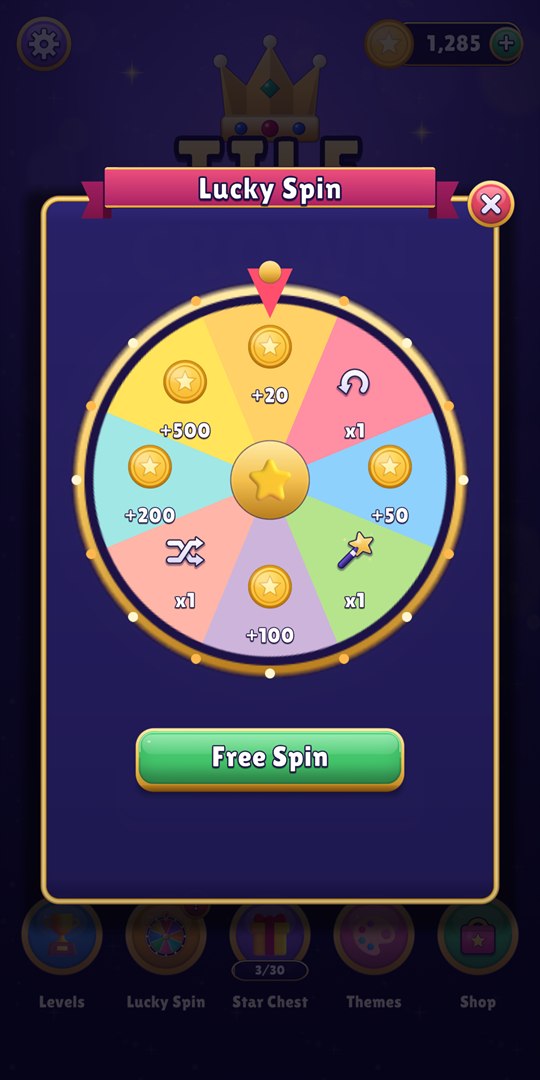
| Spin Slots | The eight wheel slots: reward, weight (higher = more likely) and color. |
| Spin Ads Per Day | Extra spins a player can unlock with rewarded ads each day, after the free one. |
Ads, purchases, links, themes
Ads and purchases are explained in Ads and In-app purchases, themes in Themes. The Links group holds your privacy policy, your store pages (for the Rate button) and your support e-mail, used by the Settings popup.
Levels & Level Editor
Levels are JSON files in TileMatch/Resources/Levels, named level_0001.json, level_0002.json and so on. If the player goes past the last file, the game generates the next level on the fly with the same difficulty curve, so it never runs out.
The curve introduces the game gently, grows the boards over the first 90 levels, then keeps a steady difficulty: in every group of ten levels the last two are harder. When levels are batch generated, each one is checked by the difficulty bot, and a layout the bot almost never wins is replaced by another one.
Opening the editor
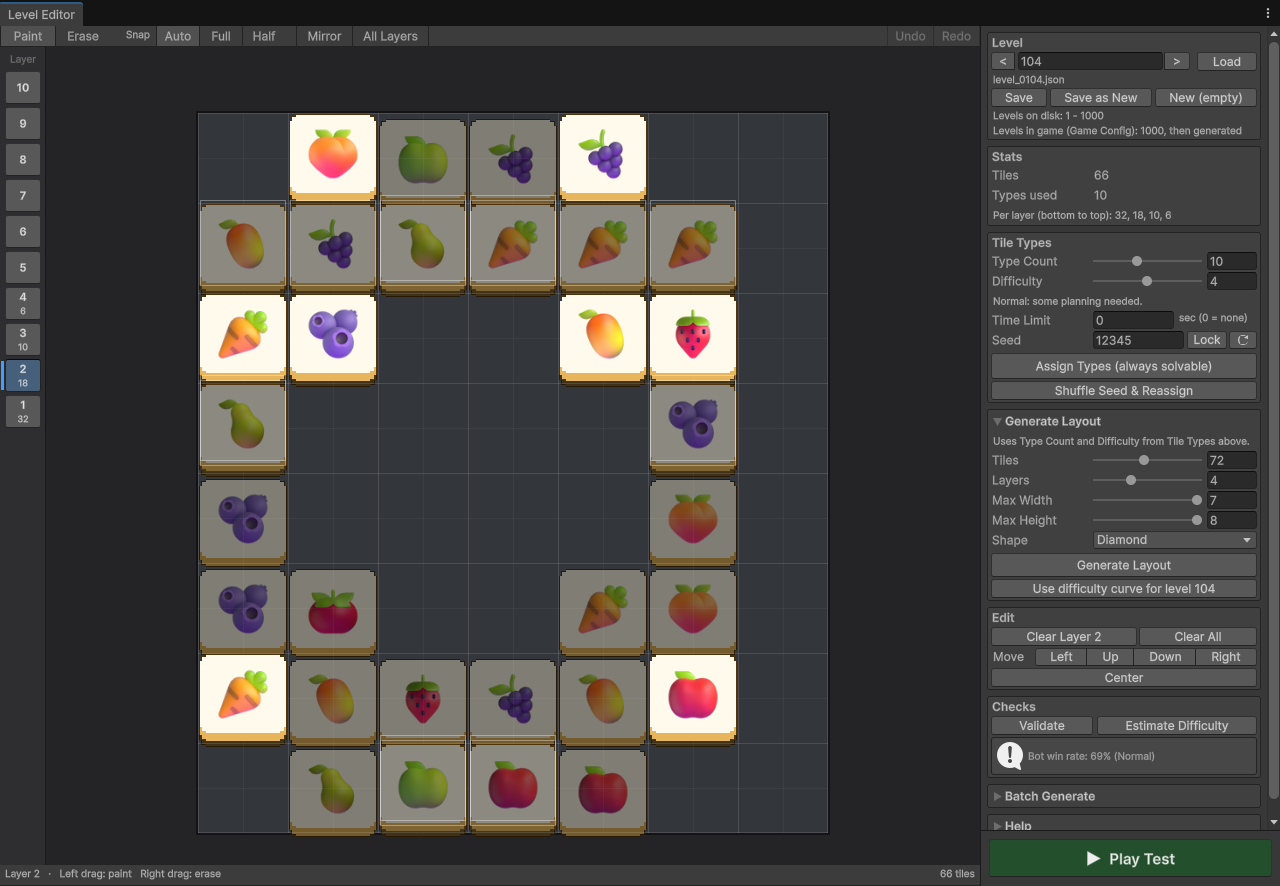
Choose . Type a level number and press Load, or use the arrows. Save writes the level number shown in the field (type another number to save a copy there), Save as New uses the first free number and New (empty) starts from scratch.
Making a level
- Pick a layer with the buttons on the left (they show how many tiles each layer has) and paint with the left mouse button. Right drag or Shift + drag erases.
- Or open Generate Layout, choose the number of tiles, layers, the size and a shape, and press Generate Layout. You get a new layout each time; tick Lock next to the seed to get the same one again. Use difficulty curve for level N fills these fields with the settings of the built-in curve.
- In Tile Types, set how many different pictures the level uses and the difficulty (how far apart matching tiles are), then press Assign Types (always solvable). Types are placed along a valid removal order, so the level can always be finished.
- Validate checks the tile count and overlaps. Estimate Difficulty lets a bot play the level 300 times like a casual player and shows how often it wins: Easy from 75%, Normal from 45%, Hard from 20%, Very Hard below.
- Play Test runs the level in the Main scene without saving it. Save when you are happy.
Tools and shortcuts
- Paint / Erase (E) and Mirror (M), which paints the mirrored tile too.
- Snap: Auto uses whole tiles on layer 1 and half steps above it, Full and Half force one or the other.
- All Layers shows every layer at once. Darkened tiles are covered: the player can't tap them at the start.
- 1–9 and 0 pick a layer. Ctrl+Z / Ctrl+Y undo and redo (Cmd on Mac).
- Undo, Redo, Erase and Mirror can be rebound in .
- Edit clears a layer or everything, moves the whole layout, or centers it.
When a level file changes on disk, for example after you replace it, the window loads the new version, unless you have unsaved changes.
Generating many levels
The Batch Generate section creates any range of level files from the difficulty curve. Leave Overwrite off to only fill missing numbers.
File format
{
    "version": 1,
    "typeCount": 4,
    "timeLimit": 0,
    "tiles": [
        { "x": 4, "y": 2, "z": 0, "t": 3 },
        { "x": 6, "y": 2, "z": 0, "t": 2 }
    ]
}
typeCount is the number of different pictures the level uses and timeLimit is in seconds (0 = no timer). In tiles, x and y are in half tiles, so a tile on an upper layer can sit between two tiles below it. z is the layer (0 = bottom) and t the tile type. Each type must appear a multiple of three times.
Themes
Tile themes
A tile theme (TileMatch/Config/Tiles_*.asset) sets the pictures shown on the tiles:
| Field | Meaning |
|---|---|
| Name Key | Localization key of the theme name. |
| Price | Coins to unlock it (0 = free). |
| Preview | Picture shown in the Themes popup. |
| Tile Sprite, Tile Color | The tile face and its tint. |
| Icons | The pictures, 24 in each included theme. A theme needs at least as many icons as the highest typeCount of your levels: the included levels use up to 11, the Level Editor allows up to 24. |
Four themes are included: Fruits (free), Sweets, Animals and Ocean. To add a theme, duplicate an existing asset, drop in your pictures, and add it to Tile Themes in the Game Config. The Themes popup scrolls, so any number of themes fits.
Backgrounds
Background themes (Background_*.asset) have a name key, a price, the background sprite, the color of the sparkle pattern and the tray tint. Add them to Backgrounds in the Game Config.
Reskinning
- Pictures: replace any PNG in
TileMatch/Artwith your own file of the same name. Buttons, panels and frames are 9-sliced, keep the borders when you draw your own. reapplies the import settings if you change them by mistake. - Screens and popups: open the prefabs in
TileMatch/Prefabs/UI. Everything is plain uGUI and TextMesh Pro. - Logo: edit
Prefabs/UI/Logo.prefab, used by the loading screen and the home screen.Art/UI/logo.pngis a picture of the same logo for the Unity splash screen, which is off by default; replace it too if you turn the splash on. - Fonts: assign another TextMesh Pro font asset to the texts, or replace the TTF files in
TileMatch/Fonts. - Sounds: replace the WAV files in
TileMatch/Audio, keeping the names, or assign new clips on the Audio object of the Main scene. - App icon and name: . The icon files are
app_icon*.pnginArt/UI: the full icon, the round one for older Android versions, and the background and foreground layers of the Android adaptive icon.
Localization
The game comes in English, French, Spanish, Portuguese (Brazil) and German. On first launch it follows the phone's language (English for any other), and the language button in Settings cycles through all of them.
All texts are in TileMatch/Resources/Localization/strings.csv: one row per text, the key first, then one column per language. Lines starting with # are section titles and are ignored.
key,en,fr,es,pt,de
# General
language_name,English,Français,Español,Português,Deutsch
level_n,Level {0},Niveau {0},Nivel {0},Nível {0},Level {0}- Edit the file in any spreadsheet program and save it as CSV (UTF-8).
- To add a language, add a column with its code (for example
it) and fill inlanguage_namefor it. Then add the matching case inFromSystemLanguageinLoc.csso the game picks it from the phone's language. The language button in Settings cycles through every column. - The fonts cover Latin alphabets with accents (ñ, ã, ç, ß...). For Cyrillic, Greek or Asian languages, add a fallback font to the TextMesh Pro font assets.
- In the scene, texts use the Localized Text component with a key. In code, use
Loc.Get("key")orLoc.Format("key", value). Numbers go throughLoc.Number, which formats them the way each language expects (1,250 in English, 1 250 in French, 1.250 in German).
Ads (AdMob)
The Google Mobile Ads plugin is included and enabled ( is ticked). Out of the box every ad uses Google's official test ids, so you can safely try all formats.
Using your own AdMob account
- Create your app in AdMob and one ad unit per format: banner, interstitial, rewarded and app open.
- Put your App IDs in .
- Paste the ad unit ids into Admob Android and Admob Ios in the Game Config.
- Untick Test Ads in the Game Config before publishing. While it is ticked, Google's test units are used whatever ids you entered, so a test build can never show live ads.
Consent (GDPR)
The game uses Google's User Messaging Platform. Create a consent message in AdMob under Privacy & messaging and the form shows automatically to users in regions that need it. Ads are only requested once consent allows it, and a Privacy button appears in Settings when the user must be able to change their choice. If the consent request fails (no internet), it is tried again when the app comes back to the foreground.
When ads show
| Format | Behavior (Game Config) |
|---|---|
| Banner | At the bottom of every screen when Use Banner is on. The layout moves up to make room. |
| Interstitial | After a level, from level Interstitial From Level, every Interstitial Every levels, and never within Interstitial Cooldown seconds of another full screen ad. |
| Rewarded | Continue after losing, free coins in the shop, boosters in the booster popup, double win reward, extra Lucky Spins. These buttons only become available once an ad has loaded. |
| App open | When the player comes back after at least App Open After Seconds away, if Use App Open is on. Skipped right after another full screen ad and while a purchase is in progress. |
The No Ads purchase removes banners, interstitials and app open ads. Rewarded ads stay available because the player chooses to watch them. To turn ads off completely, untick Enable Ads in the Game Config.
Building without the plugin
Untick . The game then compiles without any Google code and runs without ads. To remove the plugin files as well, delete the GoogleMobileAds and ExternalDependencyManager folders, the Google Mobile Ads files in Plugins/Android and Plugins/iOS, and the lines between Android Resolver Dependencies Start and End in Plugins/Android/mainTemplate.gradle.
In-app purchases
Purchases use Unity IAP 5 (package com.unity.purchasing 5.4.3), which uses Google Play Billing Library 9 on Android and StoreKit 2 on iOS. IAPManager is written for the 5.x API: the TM_IAP define in TileMatch.asmdef turns the store code on for any 5.x version.
The shop sells the Products listed in the Game Config:
| Field | Meaning |
|---|---|
| Product Id | Must match the id you create in Google Play Console and App Store Connect. |
| Kind | Coins (consumable), NoAds (non-consumable) or Bundle (coins + boosters; non-consumable when it removes ads). |
| Coins, Boosters, Removes Ads | What the purchase gives. |
| Title Key, Icon, Best Value | How it looks in the shop. |
| Fallback Price | Shown until the store returns the real, localized price. |
- Change the ids from
com.yourcompany.tilecrown.*to your own. - Create the same products in Google Play Console (Monetize → Products → In-app products) and App Store Connect. Google only returns products once a build is uploaded to a testing track.
- Add your Google account as a license tester to buy without being charged.
One-time products (No Ads, the starter bundle) are delivered once and disappear from the shop after purchase. On a new phone or after a reinstall they come back by themselves when the store connects (without their coins, which were already given). Payments the store confirms later, such as cash payments on Google Play or Ask to Buy on iOS, show a "Purchase pending" message and are delivered when they go through, even in a later session. On iOS, Settings and the shop have a Restore button, as Apple requires (it also shows in the editor so you can test it).
Each purchase is delivered, saved, and only then confirmed to the store. The ids of delivered transactions are kept in the save, so if the app closes between the delivery and the confirmation, the store sends the purchase again at the next launch and it is only confirmed, never delivered twice.
Testing in the editor
In Play mode Unity IAP uses its fake store. Tapping a price opens a small Fake Store window: Buy completes the purchase, Cancel cancels it like a player closing the store sheet.
Receipt validation
Every purchase is checked before it is delivered. A purchase that fails the check gets no coins and is not confirmed, so the store refunds it automatically (Google Play after three days).
On the device (Google Play). Unity IAP's CrossPlatformValidator verifies the signature of each Google Play receipt with your app's license key, and IAPManager also checks that the receipt is for the product that was bought. Set it up once:
- In Google Play Console open your app, then Monetize with Play → Monetization setup, and copy the Licensing key (Base64-encoded RSA public key).
- In Unity choose , paste the key and press Obfuscate Google Play License Key.
- Unity writes
GooglePlayTangle.csandAppleTangle.cstoAssets/Scripts/UnityPurchasing/generated. There is nothing else to do:IAPManagerfinds them by name, andTileMatch/link.xmlkeeps them in stripped builds.
Until the key is set, Android builds log "Google Play receipts are not validated yet" and purchases are delivered without the check.
On the device (App Store). StoreKit 2 verifies every transaction itself on iOS 15 and newer. On iOS 13 and 14 (StoreKit 1) the App Store receipt is checked with AppleTangle from the same obfuscator.
On your own server (optional). A check on the device can be bypassed on a rooted or jailbroken phone. For the strongest protection, set IAPManager.ServerValidation: the game then waits for your server's answer before it delivers a purchase.
using System;
using UnityEngine;
using UnityEngine.Networking;
using TileMatch;

public class MyReceiptCheck : MonoBehaviour
{
    [SerializeField] string url = "https://example.com/verify-purchase";

    void Awake() => IAPManager.ServerValidation = Check;

    void Check(PurchaseReceipt purchase, Action<bool> done)
    {
        var request = UnityWebRequest.Post(url, JsonUtility.ToJson(purchase), "application/json");
        request.timeout = 15;
        request.SendWebRequest().completed += _ =>
        {
            // your server answers {"valid": true} or {"valid": false}
            bool valid = request.result == UnityWebRequest.Result.Success && request.downloadHandler.text.Contains("\"valid\":true");
            request.Dispose();
            done(valid);
        };
    }
}
Add the script to any object of the Main scene. PurchaseReceipt carries the product id, the transaction id, the store name, Unity IAP's receipt, the Google Play purchase token and the App Store signed transaction. Your server checks them with the store:
- Google Play: call the Google Play Developer API
purchases.products.getwith your package name, the product id andgooglePurchaseToken(it needs a Google Cloud service account linked to your Play Console). The purchase is valid whenpurchaseStateis 0. - App Store: verify the
appleSignedTransactionJWS with Apple's certificate chain (Apple's App Store Server Library does it), or ask the App Store Server API for the transaction withtransactionId.
done exactly once, on the main thread (UnityWebRequest callbacks are). When your server can't be reached, answer false: the purchase stays unconfirmed, comes back at the next launch and is checked again.Save data & cheating
Protected save
Progress, coins, boosters and purchases are saved in PlayerPrefs (key tilematch_save) as JSON that is signed with HMAC-SHA256 and lightly scrambled, so the values can't be read or changed with a PlayerPrefs or XML editor. When a save has been edited or damaged, the signature doesn't match: the game starts a new save and keeps the rejected one under tilematch_save_broken, in case a player writes to support.
SaveManager.Secret in Scripts/Runtime/Core/SaveManager.cs. Replace it with your own random text (for example a new GUID) so your saves can't be forged with the secret everyone who bought the project has. A warning appears when you build while it is still the original one. Never change it after release: saves signed with another secret are treated as edited and start over.This stops casual cheating, which is what a game that keeps its data on the phone can do: the secret is inside the app, so a determined player with a decompiler could still rebuild a save. If your economy needs more than that, keep the wallet on a server.
Lucky Spin and the device clock
Daily rewards follow GameClock, not the phone's clock directly. It remembers the latest time it has seen and never goes back from it:
- Clock set back (the classic trick to get the free spin again): detected as soon as the game reads the time. The free spin doesn't come back, the log says how far the clock went back, and the Lucky Spin shows "Clock set back: free spin comes later".
- Clock set forward: the player gets the next days' spins early, but then waits until the real date catches up, so there is nothing to gain over time.
- Time zones: a spin is free only on a later calendar day than the last one, so flying across time zones (or faking it) doesn't give an extra spin.
Limits: the game doesn't check the time online. A player who moves the clock far into the future takes a few spins early and then waits until that date for the next free one, and deleting the app's data resets everything, like any game saved on the phone. If your game has a server, give daily rewards from the server's time instead.
Building
Android
- In set your company name, product name, Package Name and version.
- Create a keystore under Publishing Settings.
- If Gradle complains about missing dependencies, run .
- Tick Build App Bundle (Google Play) in the build profile and build.
The project targets Android 7.0 (API 24) and newer, ARM64 and ARMv7 with IL2CPP, and uses ASTC texture compression.
iOS
- Set the Bundle Identifier and signing team in the Player settings. The minimum iOS version is 13.
- Build, then open the generated
.xcworkspace(not the .xcodeproj). CocoaPods installs the Google Mobile Ads SDK during the build. - Set up the tracking prompt as explained below.
App Tracking Transparency (iOS)
Since iOS 14.5, an app must ask permission before it uses the advertising identifier (IDFA) for personalized ads. The game doesn't show this prompt from its own code: Google's UMP SDK shows it, as part of the consent flow that runs at launch (ConsentForm.LoadAndShowConsentFormIfRequired in AdMobProvider). This is how it works:
- The game starts and asks UMP for the consent status.
- If you published an IDFA explainer message in AdMob and the player hasn't answered the tracking question yet, UMP shows your explainer screen first (and the GDPR form before it, in the regions that need it).
- When the player continues, UMP asks iOS for permission and the system prompt "Allow ... to track your activity across other companies' apps and websites?" appears, with the text you entered as User Tracking Usage Description.
- Ads start once consent allows it. With Allow, AdMob can show personalized ads; with Ask App Not to Track, ads still show, without the IDFA.
Without an IDFA explainer message, iOS never shows the prompt and AdMob serves ads without the IDFA. Set it up like this:
- In , fill in User Tracking Usage Description (it becomes
NSUserTrackingUsageDescriptionin Info.plist). puts a default text there if it is empty; write your own, it is what the player reads. - In AdMob open Privacy & messaging, create an IDFA explainer message (shown as "IDFA message" / "iOS ATT" depending on the AdMob version), choose your iOS app, and publish it. Publish your GDPR message there too.
Check it before you submit to the App Store:
- Install the build on a real iPhone (iOS 14.5 or newer) from Xcode or TestFlight.
- In , make sure Allow Apps to Request to Track is on. When it is off, iOS answers "no" for every app and never shows the prompt.
- Launch the game: the explainer appears, then the system prompt with your text. iOS asks only once per install, so delete the app and install it again to see it another time.
- In the Xcode console, check that no error mentions
NSUserTrackingUsageDescription, and that ads load after you answer. - To test the GDPR form outside Europe, add debug settings to the request in
AdMobProvider.RequestConsent, then remove them before release:var request = new ConsentRequestParameters { ConsentDebugSettings = new ConsentDebugSettings { DebugGeography = DebugGeography.EEA, TestDeviceHashedIds = new List<string> { "YOUR-HASHED-DEVICE-ID" } // printed in the Xcode console } }; ConsentInformation.Update(request, ...); - In App Store Connect, answer the App Privacy questions to match: with AdMob, "Device ID" and "Advertising Data" are used for third-party advertising, and tracking is declared when you show the prompt. Apple checks that the prompt appears in the build you submit.
Publishing checklist
- Your own AdMob, Google Play Console and Apple Developer accounts (see possible costs).
- Your own package name / bundle identifier, product name, icon and version.
- Your AdMob App IDs and ad unit ids, and Test Ads unticked.
- A consent message published in AdMob (Privacy & messaging).
- iOS: a User Tracking Usage Description, an IDFA explainer message published in AdMob, and the tracking prompt checked on an iPhone (see App Tracking Transparency).
- Your product ids in the Game Config and the same products created in the stores.
- Unity IAP on a 5.x version (no version warning in the Console).
- Your Google Play license key in the Receipt Validation Obfuscator (see Receipt validation).
- Your own
SaveManager.Secret(see Save data). - Your privacy policy, store links and support e-mail in the Game Config.
- A release keystore (Android) and signing team (iOS).
- Tested a release build on a real phone.
Code overview
The code lives in the TileMatch namespace. The main pieces:
| Class | Role |
|---|---|
| GameController | Entry point on the Game object: starts services, loads levels, switches themes. |
| UIManager | Shows screens (loading, home, levels, game) and keeps track of open popups and the back button. |
| UIScreen, UIPopup | Base classes of every screen and popup, with their show and hide animations. |
| BoardController | Builds the board from a LevelData, handles taps, boosters, win and lose. |
| TrayController | The tray slots: inserting tiles next to their twins and clearing matches of three. |
| LevelRepository, LevelGenerator | Load level files; generate solvable levels when a file is missing. |
| SaveManager, PlayerData, Wallet | Progress saved as signed JSON in PlayerPrefs; coins, boosters and pending rewards with change events. |
| GameClock | The time daily rewards follow; it never goes back, see Save data. |
| AdsManager, IAPManager | One simple API for ads and purchases, whatever the provider. IAPManager also validates receipts and exposes ServerValidation. |
| AudioManager, Haptics, Loc | Sounds and music, vibration, texts. |
| Tween | A small tweening helper used by every animation, no extra package needed. |
How rewards are handed out
Winning a level, opening the Star Chest or landing on a Lucky Spin prize saves the reward as pending right away, together with the progress. The popup then shows it and Wallet.ClaimPending() adds it to the wallet when the player collects it. If the app is closed in between, the reward popup comes back on the next launch.
Adding a popup
- Create a class that inherits from
UIPopupand overrideOnOpen. - Duplicate a popup prefab from
Prefabs/UI, swap the component, place it under Canvas/Popups in the Main scene. - Add it to the Popups list of the UIManager on the Canvas, then open it from code with
UIManager.Instance.Get<MyPopup>().Open().
Troubleshooting
No ads show on my phone
Check that the phone has internet, that Enable Ads is on and that you haven't bought No Ads in that install. Live ad units can take hours to start serving after you create them; keep Test Ads on until then. In the EU the consent form must be answered first.
"Store not available right now"
The store doesn't sell your products yet: they aren't created, not active, or the build isn't uploaded to a testing track. Use a development build with Test Purchases on to test the flow meanwhile.
Pink or missing images in a build
must list UI/Default in Always Included Shaders. It is set in this project; keep it if you change graphics settings.
Gradle or dependency errors on Android
Run , and make sure the Gradle templates in Plugins/Android are enabled in the Player settings (Publishing Settings).
A dialog says the Unity IAP version is not supported
Another major version of Unity IAP is installed, so purchases are switched off. Install a 5.x version (5.4.3 or newer) in ; the message goes away after the next compile.
"Invalid receipt" in the log and the purchase isn't delivered
The license key in the Receipt Validation Obfuscator doesn't belong to this app, or the build's package name differs from the one in Google Play Console. Copy the key again from Monetization setup and obfuscate it again.
My progress was reset
The save was edited outside the game, or SaveManager.Secret changed since it was written. The old save is kept under the PlayerPrefs key tilematch_save_broken. While developing, use the Cheats menu instead of editing PlayerPrefs.
My saved progress in the editor gets in the way
Use .
A level file won't load
If a file can't be read, the game logs an error and plays a generated level with that number instead, so players are never stuck. Open the level in the Level Editor to see what is wrong: it marks unreadable files and Validate lists the problems.
Credits & licenses
The game, its code, the user interface art, the logo, the sounds and the levels are original work made for this project. The following assets are included; their licenses are in TileMatch/ThirdPartyLicenses (or next to the asset) and allow commercial use:
| Asset | License |
|---|---|
| Microsoft Fluent Emoji (tile pictures and some icons) | MIT |
| Fredoka font | SIL Open Font License 1.1 |
| Lilita One font | SIL Open Font License 1.1 |
| Google Mobile Ads Unity plugin | Apache 2.0 |
| External Dependency Manager for Unity | Apache 2.0 |
| TextMesh Pro essential resources, including the Liberation Sans font | Unity Companion License; Liberation Sans: SIL Open Font License 1.1 (in TextMesh Pro/Fonts) |
| Unity IAP | Unity's package terms (installed from the Package Manager) |
Changelog & support
1.1.0
- Unity IAP 5.4.3 (Google Play Billing Library 9, StoreKit 2) replaces Unity IAP 4.14.
IAPManageruses the new StoreController API; its public methods are unchanged. TM_IAPis now defined for every Unity IAP 5.x version, and an unsupported version shows a dialog in the editor, a warning when building and a message at runtime.- Receipt validation with Unity's
CrossPlatformValidatorand the obfuscated store keys, plusIAPManager.ServerValidationfor checks on your own server. - A purchase is never delivered twice, even if the app closes before the store confirmation.
- The save is signed (HMAC-SHA256) and scrambled, so coins, boosters and No Ads can't be edited by hand.
- The Lucky Spin follows a clock that never goes back: setting the date back or changing the time zone no longer gives extra free spins.
- Spanish, Portuguese (Brazil) and German, for five languages in all.
- A fourth tile theme: Ocean, 24 pictures.
- Documentation: App Tracking Transparency on iOS, receipt validation, save data.
1.0.0
- First release.
Questions or problems? Contact us through the comments on the item page or the support form on our profile. Please include your Unity version and the platform you build for.